
A 24/7 live streaming setup has four parts: the videos you stream, a machine that runs all the time, an encoder such as OBS that sends the video to YouTube, and an upload connection that stays above your bitrate. You can run it on a dedicated computer at home, on a rented server, or let a cloud service do the streaming so no computer of yours stays on.
This guide covers each part for a stream of pre-recorded videos: where to run it, the hardware, the OBS settings, and the problems that show up after days of streaming. Every YouTube setting here comes from YouTube Help, read in September 2026.
Choose where the stream runs
The encoder must run every hour of every day. Where it runs decides what can stop your stream.
- A dedicated PC at home. You maintain the computer, OBS and the connection. A power cut or an internet outage at home stops the stream, and you restart OBS after a crash. The cost is electricity, because OBS is free.
- A rented server (VPS). A VPS is a virtual private server, a computer you rent in a data center, for about $15 to $60 a month. Outages at home do not reach it, but you still install, update and restart OBS on it. Our guide to streaming video from a server covers that setup.
- A cloud streaming service. The service runs the encoder, and you maintain only your videos. The comparison table on our homepage shows the price and the longest continuous run on eight tools.
The rest of this guide is for the first two options, where you run OBS yourself.
Hardware for a dedicated streaming PC
Streaming pre-recorded video does not need a gaming PC. The encoder decodes one video file and encodes one live feed. What matters is that the machine does this for weeks without a stop.
| Part | What to look for | Why it matters for 24/7 |
|---|---|---|
| Hardware encoder | A GPU or CPU with a built-in video encoder: NVIDIA NVENC, Intel Quick Sync or AMD AMF | The encoder chip does the work, so the CPU stays free and cool |
| CPU and memory | A current desktop processor and 16 GB of RAM | Enough for OBS and one scene with a playlist |
| Storage | An SSD with room for your whole video library | The playlist reads files from disk all day |
| Cooling | A desktop case with good airflow, not a laptop | The machine runs under load every hour |
| Power | A UPS (a battery backup unit) | A short power cut does not restart the machine |
| Network | A wired Ethernet connection | Wi-Fi drops and slows down more often than a cable |
Use this machine only for streaming. Then change three system settings:
- Turn off sleep and hibernation.
- Control system updates. Windows restarts on its own to install updates. Set active hours, or pause updates and install them yourself during a planned break.
- Start OBS when the computer starts, so that a restart after a power cut brings the stream back.
Upload speed
Your upload speed must stay above the bitrate you stream at, at every hour of the day. YouTube recommends 10 Mbps for 1080p at 30 fps with H.264. So a connection that tests at 12 Mbps upload in the morning and 8 Mbps in the evening cannot carry a 1080p stream at the recommended bitrate.
Test your upload at different times of day, and choose a bitrate well below the lowest result. If the connection cannot carry 1080p, stream 720p at 30 fps, where YouTube recommends 4 Mbps. Our guide to upload speed for streaming explains how to test.
Set up OBS for a looping playlist
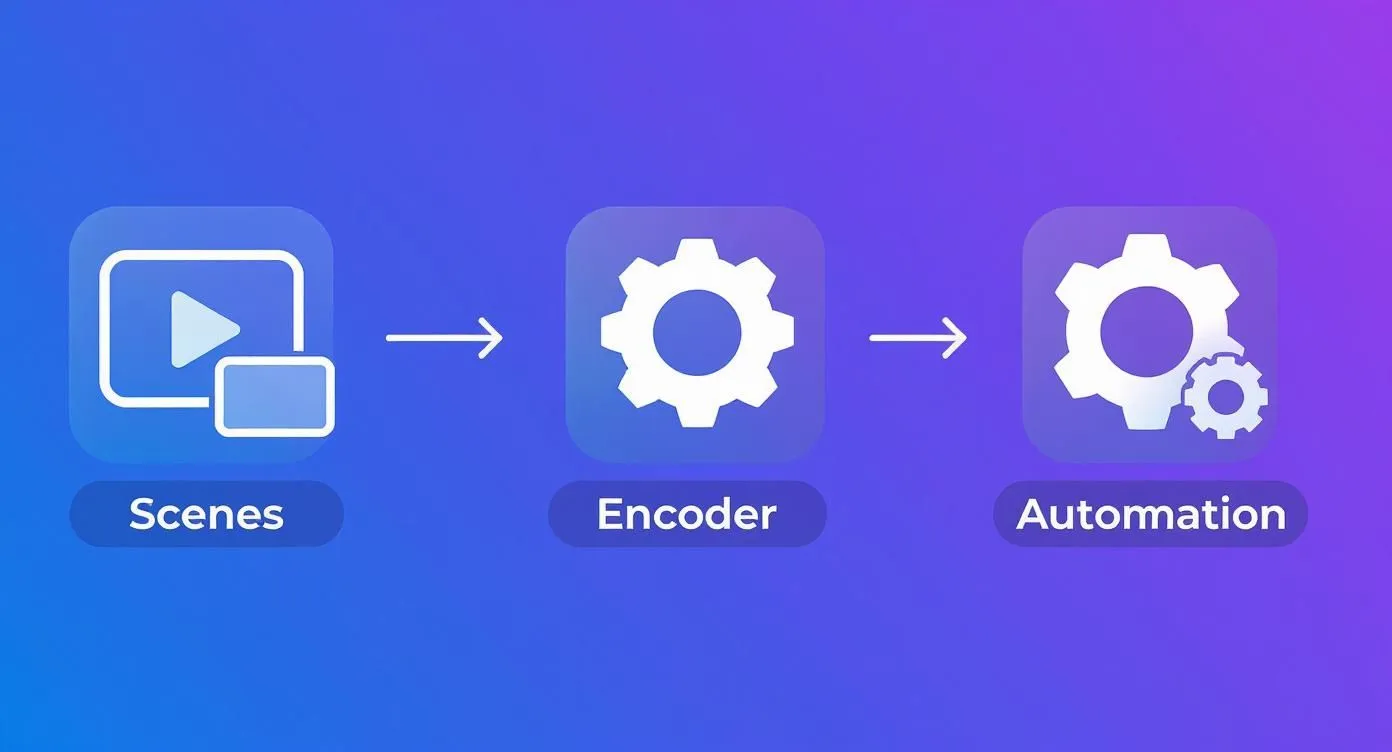
OBS has two sources that play video files. Both are built in.
Media Source plays one file. Turn on Loop to play it again when it ends. Use it for a stream of one long video.
VLC Video Source plays a playlist of files. It shows up in OBS only when VLC is installed on the computer, and with 64-bit OBS you need 64-bit VLC. In its properties:
- Click + to add your video files, or a folder of them.
- Turn on Loop Playlist, so the playlist starts again after the last file.
- Turn on Shuffle Playlist if you want a random order.
- Set Visibility Behavior to Always play, so the playlist keeps going if you switch scenes.
For a 24/7 stream, keep it to one scene with the playlist source. Add a logo or a text overlay in the same scene if you want one. The fewer sources OBS runs, the fewer things can fail after a week.
Prepare the files first
Before a file goes into the playlist, convert it to the same format as the others: the same resolution, frame rate and audio sample rate. A playlist that mixes 1080p and 720p files, or audio at 44.1 kHz and 48 kHz, makes OBS switch formats between videos. Our guide to converting MP4 to H.264 shows how to convert a batch of files with FFmpeg.
Encoder settings for YouTube
In Settings > Output, set Output Mode to Advanced, then use the values YouTube recommends for H.264 over RTMP:
| Setting | Value |
|---|---|
| Rate control | CBR (constant bitrate) |
| Bitrate, 1080p 30 fps | 10 Mbps (10,000 kbps) |
| Bitrate, 1080p 60 fps | 12 Mbps |
| Bitrate, 720p 60 fps | 6 Mbps |
| Bitrate, 720p 30 fps | 4 Mbps |
| Keyframe interval | 2 seconds (never more than 4) |
| Audio | AAC, 128 kbps, 44.1 kHz stereo |
For the encoder, choose the hardware encoder of your GPU (NVENC, Quick Sync or AMF) if the machine has one. For more on how to choose a bitrate, read our guide to bitrate for streaming.
For music and calm scenes, 1080p at 30 fps is enough. 60 fps raises the recommended bitrate and adds little to slow footage.
Keep the stream running without you
Turn on automatic reconnect. In OBS, open Settings > Advanced and turn on Automatically Reconnect. Set a retry delay and a high number of maximum retries. If the connection to YouTube drops, OBS tries again on its own.
Watch the stream from outside. Open the stream in YouTube Studio's Live Control Room from your phone once a day. It shows the stream health and the messages that YouTube sends about the feed.
Restart OBS if it closes. A small script or a scheduled task can check every few minutes whether OBS is running, and start it again if it is not. Start OBS with the --startstreaming option, so that it goes live as soon as it opens.
Keep your own copies. YouTube can save a live stream shorter than 12 hours. YouTube Help says a longer stream may not be captured at all, so the playlist files are your only copy.
Common problems after days of streaming
Audio drifts out of sync. The sound slowly moves ahead of or behind the picture. Files with different audio sample rates can cause it. Convert every file to one sample rate before it goes into the playlist. Our guide to fixing YouTube audio sync problems covers other causes.
"Encoding overloaded!" OBS shows this message when the encoder skips frames because the machine cannot keep up. Switch to a hardware encoder, choose a faster preset, or lower the output resolution. The Stats dock shows how many frames the encoder skipped.
The bitrate graph drops. If YouTube shows a poor stream health and the bitrate falls below what you set, the upload connection cannot carry the stream. Lower the bitrate, or move the stream off your home connection.
The stream stops and does not come back. Check that automatic reconnect is on, that the computer did not sleep or restart for an update, and that OBS starts with the system.
A 24/7 setup with no computer of yours
If you do not want to maintain a machine, a cloud service does the streaming. With 247 LiveStream, you upload your videos in your browser, put them in a playlist, paste the stream key from YouTube Studio and start the stream. Our servers play the playlist and send it to YouTube, so your computer, your power and your home internet can all go off. See the pricing for the cost of one stream, and the FAQ for how reconnects and playlist changes work.
Frequently asked questions
Can I run a 24/7 stream from my home PC?
Yes, if the PC stays on, awake and online all the time. Use a desktop, not a laptop, with a wired connection and a battery backup. A power cut, a crash or an automatic update still stops the stream until the PC and OBS start again.
How much upload speed do I need?
More than your stream's bitrate, at every hour. YouTube recommends 10 Mbps for 1080p at 30 fps and 4 Mbps for 720p at 30 fps. Test your upload at different times of day and stay well below the lowest result.
What is the best way to loop videos in OBS?
For several files, use the VLC Video Source with Loop Playlist turned on. For one file, use a Media Source with Loop turned on.
Will YouTube save my 24/7 stream as a video?
Not all of it. YouTube can save a live stream shorter than 12 hours, and says a longer stream may not be captured at all. The live stream keeps going.
Do I need a VPS for a 24/7 stream?
No. A dedicated PC at home works if you accept that a local outage stops the stream. A VPS or a cloud service removes that risk. Our guide to what 24/7 live streaming is compares the three options.