So, what's a good upload speed for streaming? YouTube recommends a bitrate of 10 Mbps for a 1080p stream at 30 fps with H.264. With a safety buffer on top, you should aim for about 14 Mbps of stable upload speed. You can stream at a lower bitrate on a slower line, but the picture gets softer. A 24/7 live stream needs that buffer at every hour of the day.
Your Quick Guide to Streaming Upload Speeds
When you're getting ready to go live, your upload speed is the single most important factor determining your stream's quality. Think of it as the highway sending your video from your computer to your viewers. If that highway is too narrow or gets congested, your stream will start to buffer, pixelate, or even disconnect. That’s frustrating for you and your audience.
This is especially true if you're running a continuous 24/7 live stream. Unlike a short broadcast, an always-on stream has to handle network hiccups over days, not just minutes. A quick dip in your internet speed could take your whole broadcast offline. That’s why figuring out the right upload speed isn't just a technical check-box—it’s a core part of your 24/7 live streaming strategy.
Recommended Upload Speed for Live Streaming
The speed you need is directly tied to the quality you want to push out. A 480p stream uses little bandwidth, while a 4K broadcast uses a lot.
Here’s a quick reference table to help you match your desired quality with the right upload speed. It uses YouTube's recommended H.264 bitrates and the "minimum safe" upload speed you should have. This safe speed includes a 40% buffer to handle any network fluctuations, which is crucial for 24/7 streams.
| Resolution & FPS | Recommended Bitrate | Minimum Safe Upload Speed |
|---|---|---|
| 480p–720p at 30fps | 4,000 kbps (4 Mbps) | 5.6 Mbps |
| 720p at 60fps | 6,000 kbps (6 Mbps) | 8.4 Mbps |
| 1080p at 30fps | 10,000 kbps (10 Mbps) | 14 Mbps |
| 1080p at 60fps | 12,000 kbps (12 Mbps) | 16.8 Mbps |
| 4K at 30fps | 30,000 kbps (30 Mbps) | 42 Mbps |
These are YouTube's numbers. Twitch recommends lower bitrates, up to 6,000 kbps for 1080p at 60fps.
As you can see, the jump from a standard 720p stream to a high-frame-rate 1080p or 4K stream requires a significant boost in upload bandwidth to keep things running smoothly.
What Speeds Do You Need for Common Resolutions?
The visual below really drives this point home, breaking down the recommended speeds for the most popular streaming resolutions.
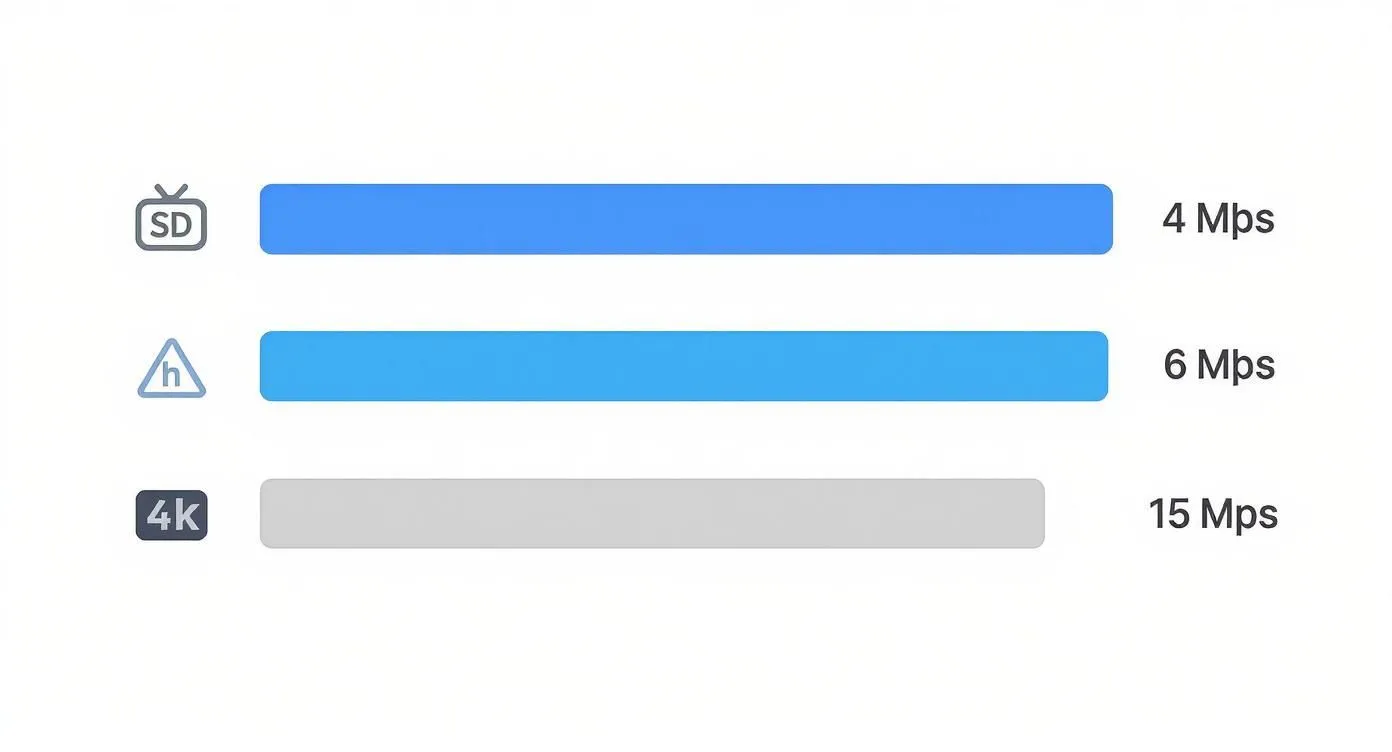
This chart shows it clearly: as your video quality goes up, so does the demand on your upload connection.
Why You Need a Safety Buffer
Here’s a pro tip: just meeting the bare minimum speed isn’t going to cut it. Your home internet connection is a shared resource. Other people, other devices—they all take a piece of the pie. Your speed can also just dip unexpectedly throughout the day. This is where a "safety buffer" comes in, and a 24/7 live stream needs one.
Think of the buffer as your insurance policy. A good rule of thumb is to have an upload speed that's at least 40% higher than what your stream actually needs (its bitrate). This extra bandwidth absorbs any sudden network congestion, so your stream stays smooth even when your connection dips.
Getting this right is a huge part of building a reliable broadcast. If you want to dive deeper, you can learn how to optimize internet speed and boost your Wi-Fi to create a stable foundation for any stream, whether it’s a quick gaming session or a permanent 24/7 event.
Why Upload Speed Is Your Most Important Metric

When you shop for an internet plan, providers advertise their download speeds. But for a content creator, especially one running a 24/7 live stream, focusing on download speed is like a shipping company worrying only about how fast they can receive packages. Your real job is sending massive boxes—your video stream—out to the world.
This is where your upload speed becomes the most important metric for a stable stream. Download speed is all about pulling data from the internet, like when you watch a movie or browse a website. Upload speed is the opposite; it’s how fast you can push data to the internet.
As a live streamer, that distinction is everything. Your computer is constantly sending a heavy, continuous flow of video and audio data to platforms like YouTube. If that pipeline is too slow or shaky, your broadcast quality tanks immediately.
The Highway Analogy for Your Stream
Think of your internet connection as a two-way highway. The download side might be a massive, eight-lane superhighway, letting tons of traffic flow to you smoothly. But your upload side? That could be just a single, bumpy country road.
- The Download Superhighway (Receiving Data): This is for watching Netflix, playing games, and scrolling social media. More lanes mean a great experience for you.
- The Upload Country Road (Sending Data): This lane is reserved exclusively for your stream. If it’s too narrow, your video data gets stuck in a massive traffic jam.
When your stream hits that traffic jam, viewers see the ugly results: pixelated video, audio that cuts in and out, and the dreaded buffering wheel. For a 24/7 live stream, this is serious. An unstable upload connection means your always-on broadcast could drop at any moment.
Your download speed determines your quality of experience as a content consumer. Your upload speed determines the quality of experience you can provide as a content creator.
What Happens When Your Upload Speed Is Too Low
Many common streaming problems trace back to one thing: not enough upload speed. It’s not just about having "bad internet" in general; it’s specifically about lacking the outbound bandwidth to support the video quality you're trying to send.
A low upload speed directly causes:
- Dropped Frames: Your software literally has to throw away video frames because it can't send them out fast enough. To your audience, this looks like a choppy, stuttering mess.
- Pixelation and Ugly Artifacts: To cope with the slow connection, your encoder will over-compress the video. This crushes the image quality, leaving you with a blurry, blocky picture that looks unprofessional.
- Stream Disconnects: If the connection is too weak, platforms like YouTube or Twitch will eventually give up and terminate the stream, taking you offline without warning. For a 24/7 stream, this means your "always-on" broadcast is now "sometimes-on," which viewers notice.
At the end of the day, a fast download speed is useless for streaming if your upload speed can't keep up. You absolutely need a strong, stable outbound connection to deliver a high-quality broadcast that keeps viewers watching. Without it, even good content is hard to watch.
Connecting Bitrate to Your Upload Speed
To really figure out what upload speed you need for streaming, you have to understand its partner in crime: bitrate.
Think of your upload speed as a big pipeline. The bitrate is the amount of data—your actual video—that you're trying to push through that pipeline every second. It's measured in kilobits per second (kbps) or megabits per second (Mbps).
A higher bitrate means you're sending more data, which gives your viewers a sharper, more detailed video. But if you try to force more data through the pipe than it can handle, you get a clog. Your stream will buffer, stutter, and drop frames. The goal is a bitrate where your video looks good without overwhelming your internet connection.
This is absolutely crucial for creators running 24/7 live streams, where even a small hiccup can bring the whole broadcast down.
How Bitrate Translates to Video Quality
Bitrate is what determines how much detail your stream can show. Imagine you're painting a picture with a limited set of pixels.
A low bitrate gives you fewer pixels to work with. The result? A blurry, blocky image where all the fine details get lost. This is why low-quality streams look so pixelated, especially during fast-action scenes like a car chase or a video game battle.
On the other hand, a high bitrate keeps much more of the detail. It's the reason a 1080p stream at 6,000 kbps looks much better than the same stream at 2,000 kbps—you're simply sending more visual information every single second.
If you want to dig deeper into fine-tuning these settings, our guide on the best bitrate for streaming breaks down the recommended numbers for different platforms.
The 40% Buffer Rule Explained
Now for an important rule for a stable stream: the buffer. You might think that if you want to stream at 10 Mbps, a 10 Mbps upload speed is all you need. It is not.
Your internet speed isn't a fixed number. It's constantly fluctuating because of network congestion, other people using your Wi-Fi, or even your internet provider managing traffic.
To guard your stream against these random dips, you need a safety margin. The "40% buffer rule" is a common rule of thumb: your total upload speed should be at least 40% higher than your stream’s bitrate.
This buffer gives your stream room to handle unexpected slowdowns without stopping. For 24/7 live streams, it is essential.
Calculating Your Ideal Upload Speed
Let's put this rule into practice. Imagine you want to broadcast a 1080p stream at 60 frames per second to YouTube, using its recommended bitrate of 12,000 kbps (or 12 Mbps).
Here’s how you figure out the minimum upload speed you actually need:
- Start with your bitrate: 12 Mbps
- Calculate the 40% buffer: 12 Mbps * 0.40 = 4.8 Mbps
- Add them together: 12 Mbps + 4.8 Mbps = 16.8 Mbps
So, for a stable 12 Mbps stream, you need an internet plan with at least 16.8 Mbps of consistent upload speed. If you have less, you're risking your stream's stability every time someone in your house decides to hop on a video call. For a 24/7 stream that runs around the clock, this matters even more.
What Upload Speed Do You Actually Need?
There’s no single number for a "good" upload speed. The right speed for you depends entirely on what you're trying to do with your live stream. A few key factors can dramatically change how much bandwidth you need, and getting a handle on them is crucial—especially if you're planning a long-duration or 24/7 broadcast where stability is everything.
The biggest factor is your stream's resolution. Pushing out a crisp 1080p Full HD stream uses a lot more data than a standard 720p broadcast. And 4K needs about three times the bitrate of 1080p. It’s like trying to mail a postcard versus a giant poster—the poster needs a much bigger box and a stronger delivery truck.
This is why you have to match your stream quality to what your internet can realistically handle. Trying to stream in 4K on a connection that struggles with 1080p will only lead to endless buffering and a poor experience for your viewers.
How Frame Rate Changes the Numbers
Resolution is only half the story. Your stream's frame rate, measured in frames per second (FPS), plays a huge role in your speed requirements. Frame rate is what makes the motion in your video look smooth. A standard 30fps is fine for most things, but for fast-moving content like sports or video games, 60fps gives smoother motion.
But here’s the catch: going from 30fps to 60fps means you send twice as many frames every second, so you need a higher bitrate. Efficient codecs keep the increase well below double. YouTube recommends 10 Mbps for 1080p at 30fps and 12 Mbps at 60fps.
A higher frame rate creates a smoother, more engaging viewing experience, but it comes at the cost of higher bandwidth. For 24/7 streams showing dynamic content, this trade-off is a critical consideration for maintaining long-term stability.
Wired vs. Wi-Fi: Your Connection Matters
How you connect to the internet is just as important as the speed your provider advertises. The difference between a wired Ethernet connection and Wi-Fi is large for a live streamer.
- Wired (Ethernet): This is the best option. Plugging directly into your router gives you the most stable, consistent speed with almost no interference or lag.
- Wi-Fi: It's convenient, sure, but Wi-Fi is prone to interference from other devices, walls, and even just the distance to your router. This can make your speed bounce all over the place, causing dropped frames even if you have a fast plan.
For any serious 24/7 stream, a wired connection isn't just a recommendation—it's a necessity. It removes a large potential point of failure and gives your broadcast the reliable foundation it needs. To see how this fits into the bigger picture, check out our guide on YouTube live stream requirements.
The Bandwidth Killers You Forget About
Finally, remember you're not the only one using your internet. Your connection is a shared highway. If someone else in the house starts a 4K Netflix binge or jumps on a video call while you're live, they're taking up a lane and eating into your total bandwidth.
This network congestion can steal the headroom your stream needs to breathe, causing it to lag out of nowhere. For example, YouTube recommends just 4 Mbps for a 720p stream at 30 fps, but most home networks carry much more than a single stream. For always-on streams, it's a smart move to isolate your broadcast computer on its own connection or use your router's Quality of Service (QoS) settings to give it priority.
How to Test Your Upload Speed the Right Way
There’s often a big difference between the internet speed your provider advertises and what you actually get. For a stable 24/7 live stream, you need a real-world picture of your upload bandwidth, and a quick test on your phone just won't give you the full story.
To get an accurate reading, you have to measure the source. Your Wi-Fi signal can be weakened by walls, other electronics, or even the microwave. The only way to get a true measure of your internet connection is to plug your computer directly into your router with an Ethernet cable.
Best Practices for an Accurate Speed Test
When you're planning something as demanding as a 24/7 stream, you need data you can trust. A single speed test isn't enough—you need to see how your connection behaves under real-world conditions.
Here’s how to do it right:
- Close Everything Down: Before running a test, shut down every other program on your computer. That means no Netflix, no cloud backups, and no extra browser tabs. The speed test needs to be the only thing using your connection.
- Clear the Network: Make sure no one else in your home is hogging the bandwidth. If someone starts downloading a huge file or streaming a 4K movie, your test results will be skewed.
- Test at Different Times: Internet speeds fluctuate. Your whole neighborhood is sharing the same main line, so test in the morning, afternoon, and again during peak evening hours (usually 7-11 PM) to find your true, reliable speed.
What Your Speed Test Results Really Mean
Once the test is done, don't just look at the upload number. For live streaming, two other metrics are just as important: ping and jitter. They tell you about the quality and stability of your connection.
Ping (or Latency): Think of this as your connection's reaction time, measured in milliseconds (ms). It’s the time it takes for a signal to go from your computer to a server and back. For streaming, you want a low ping—ideally under 50ms—to avoid frustrating delays.
Jitter: This measures the consistency of your ping. If your ping time is all over the place, you have high jitter, which means your connection is unstable. That’s a recipe for a choppy, unreliable stream. A jitter below 20ms is what you're aiming for.
Troubleshooting a Slow Connection
If your tests show your upload speed is lower than you need, don't worry just yet. Often, there are some simple things you can do to improve it.
Before you spend time on the phone with your internet provider, check out these helpful tips to increase your upload speed.
What If Your Internet Just Isn't Fast Enough?
After all this talk about upload speeds and bitrate rules, you might be thinking, "What if my home internet just can't keep up?" It's a common problem. For many creators of 24/7 live streams, upgrading to a faster internet plan isn't practical or even possible.
So, are you stuck with a choppy, low-quality stream? No. There's an alternative that sidesteps the limits of your local upload speed: cloud-based 24/7 streaming.
This approach flips the script on how you go live. Instead of broadcasting a high-bitrate stream from your computer every hour of the day, you upload your pre-recorded videos once to a cloud server. That server then broadcasts the stream to the platform.
How Does Cloud Streaming Work?
Think of it this way. Instead of trying to drive a giant semi-truck (your high-quality stream) down your small residential street (your home internet connection), you deliver the cargo once to a shipping depot. That depot, the cloud server, has a fast connection and handles the long-haul delivery for you.
This model removes the constant load on your home network. After the upload, the stream does not depend on your local internet. The server sends the stream to YouTube over RTMP, which you can learn more about in our guide explaining what RTMP is and how it works.
A Practical Option for 24/7 Streams
This cloud-based approach helps most with a 24/7 live stream. An always-on broadcast is extremely sensitive to local problems. A quick internet drop, a power flicker, or an automatic computer update can knock your entire stream offline, breaking the continuous experience for your viewers.
When you hand off the broadcast to the cloud, your stream no longer depends on these local points of failure. It comes from a data center instead of your home connection and power supply.
Cloud streaming gives you data center infrastructure without running a server yourself. It provides:
- No local disruptions: Power cuts, PC restarts and home internet drops do not stop the stream.
- Less Strain at Home: Your computer and network are freed from the constant stress of broadcasting.
- Works with slow home internet: You can run a 1080p 24/7 stream even if your home upload speed is too slow to stream it yourself.
For an always-on stream of pre-recorded content, this changes the question from "Is my upload speed good enough?" to "Can I upload my videos once?"
Your Streaming Speed Questions, Answered
Alright, we've gone through the technical details, but let's talk about real-world scenarios. Here are some of the most common questions I hear from streamers, with a focus on running continuous broadcasts.
Can I Actually Stream With 5 Mbps Upload Speed?
You sure can, but you'll have to manage your expectations. An upload speed of 5 Mbps is plenty for a good-looking 720p stream at 30fps. Following the 40% buffer rule, this connection can handle a bitrate of about 3,500 kbps (3.5 Mbps). That is a little below YouTube's 4 Mbps recommendation for 720p at 30fps, but it still looks fine for most content.
The catch? You have almost no wiggle room. If someone else in your house decides to hop on a video call or start a large download, your stream quality will likely take a hit. For something like a 24/7 live stream a 5 Mbps connection is cutting it too close unless nothing else uses that line.
"My Internet Is Fast, So Why Is My Stream Lagging?"
This is probably the single most frustrating issue a streamer can face. You pay for a fast internet package, but your stream still stutters. More often than not, the problem is one of three things:
- Upload vs. Download Speed: Internet providers love to advertise huge download speeds, but they often bury the much lower upload speed in the fine print. For streaming, your upload speed is the only number that really matters.
- A Shaky Connection: Speed isn't everything; stability is just as important. Things like Wi-Fi congestion, high ping, or jitter can disrupt your stream, causing dropped frames even on a fast connection. This is why a wired Ethernet connection is always, always the best choice for a 24/7 stream.
- Your PC is the Bottleneck: Sometimes, the problem isn't your internet at all. If your computer's CPU is struggling to encode the video on the fly, it will drop frames before the data even leaves your machine. This makes it look like a connection problem, but it's actually a hardware limitation.
What's a Good Upload Speed for a 24/7 YouTube Stream?
When you're running a stream around the clock on a platform like YouTube, your main priority shifts from peak quality to consistency. For a standard 1080p 30fps broadcast, a good choice for always-on content, I'd recommend a dedicated upload speed of at least 14 Mbps.
This gives you enough bandwidth for YouTube's recommended 10,000 kbps (10 Mbps) bitrate, plus a 40% buffer. The buffer keeps you online through the small network dips that happen over days of continuous broadcasting. If your line is slower, lower the bitrate, stream 720p, or run the stream from a cloud service.
Do I Really Need Faster Internet to Stream at 60fps?
Usually, yes. Going from 30fps to 60fps means sending twice as many frames every second. To do that without a blocky picture, you need a higher bitrate.
For a 1080p stream at 60fps to YouTube, you should be looking at an upload speed of about 17 Mbps at a minimum. This allows for YouTube's recommended 12,000 kbps bitrate plus the 40% safety buffer. If you try to push 60fps on a connection that's struggling with 30fps, you're going to have a bad time. For 24/7 streams, this increased demand makes connection stability even more critical.
Is your upload speed too slow for a 24/7 stream? 247 LiveStream broadcasts your pre-recorded videos from cloud servers at 1080p 30 FPS, so your home upload only carries the one-time file upload. Your computer can be off, and the service reconnects automatically if the connection to YouTube drops. It costs $16 per month, or $14 per month billed yearly. See how 247 LiveStream works.