Yes. Any YouTube channel can go live from a computer, with a webcam or with streaming software, once you verify the channel, have no live streaming restrictions in the past 90 days, and turn on live streaming. The first activation can take up to 24 hours, and a live stream from the YouTube mobile app also needs at least 50 subscribers.
This guide lists the requirements, the four ways to go live, and the steps for your first stream. Every YouTube fact here comes from YouTube Help, read in September 2026.
What you need to go live on YouTube
YouTube lists these requirements:
- Age 16 or older. YouTube takes down live streams that break the age rule, and the account can lose the ability to live stream for a time.
- A verified channel. Go to youtube.com/verify and enter a phone number. YouTube sends a code by text or voice call.
- No live streaming restrictions in the past 90 days. A Community Guidelines strike or a copyright strike on a live stream can restrict your channel.
- Live streaming turned on. YouTube says that enabling live streaming for the first time may take up to 24 hours. After that, you can go live at once.
- For mobile only: at least 50 subscribers. A stream from a computer or an encoder has no subscriber minimum.
The 24-hour wait is the one that catches people. If you plan a stream for a date, turn on live streaming at least a day before. Our guide to YouTube live stream requirements goes into each rule in more detail.
Four ways to go live on YouTube
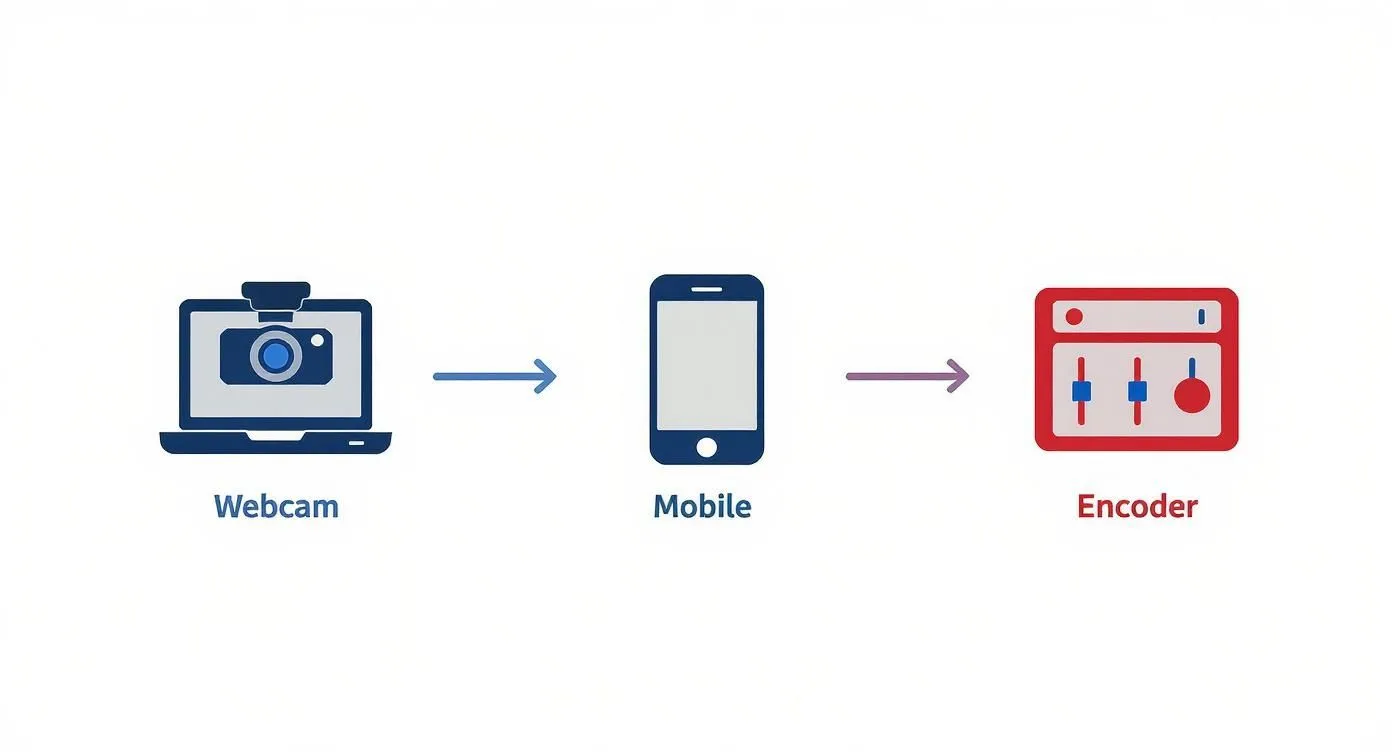
YouTube supports four methods. Pick the one that fits what you stream.
| Method | Good for | Subscribers needed |
|---|---|---|
| Webcam | Q&As, talks to camera | None |
| Mobile | Vlogs, quick updates, events | 50 |
| Encoder | Games, screen sharing, several cameras, pre-recorded videos, 24/7 streams | None |
| Game console | Gameplay from a PlayStation, Xbox or Nintendo console | None |
Webcam is the quickest way to start. You go live from your browser in YouTube Studio, with nothing to install. YouTube supports Chrome 60+ and Firefox 53+ for webcam streams.
Mobile uses the YouTube app on a phone or tablet. A channel with 50 to 999 subscribers has two more limits: YouTube may limit the number of viewers, and it sets the saved stream to private by default.
An encoder is a program or a device that turns your video into a live feed and sends it to YouTube. Use one to mix several sources, show graphics, or play pre-recorded videos as a live stream. OBS Studio is a free encoder for Windows, macOS and Linux. For other options, see our list of YouTube live stream software.
How to turn on live streaming
- Open YouTube Studio on a computer.
- Click Create at the top right, then Go live.
- If YouTube asks you to verify the channel, enter your phone number and then the code that YouTube sends.
- Wait for YouTube to turn on live streaming. The first time, this can take up to 24 hours.
When live streaming is on, Create > Go live opens the Live Control Room, the page where you set up and watch your streams.
How to go live with a webcam
- In YouTube Studio, click Create > Go live.
- From the left, select Webcam.
- Add a title and a description, and choose the privacy setting.
- Click Next. Your camera takes a thumbnail.
- Check that the correct camera and microphone are selected.
- Click Go live.
To end the stream, click End stream at the bottom of the page.
How to go live with OBS
These steps use OBS Studio. Other encoders use the same two values from YouTube: a server URL and a stream key.
1. Copy your stream key
The stream key is a code that tells YouTube which channel the video belongs to. Anyone who has it can stream to your channel, so keep it private.
- In YouTube Studio, click Create > Go live.
- Click the Stream tab. For your first stream, YouTube asks you to create a stream first.
- In the stream settings, click Copy next to the stream key.
2. Connect OBS to YouTube
- In OBS, open Settings > Stream.
- For Service, choose YouTube - RTMPS.
- Paste the stream key into the Stream Key field, or click Connect Account and sign in to YouTube instead.
- Click Apply.
3. Set the output
In Settings > Output, set the bitrate for your resolution. YouTube recommends these values for H.264:
| Resolution and frame rate | Recommended bitrate |
|---|---|
| 1080p, 30 fps | 10 Mbps (10,000 kbps) |
| 1080p, 60 fps | 12 Mbps |
| 720p, 60 fps | 6 Mbps |
| 720p, 30 fps | 4 Mbps |
Use constant bitrate (CBR) and a keyframe interval of 2 seconds. Your upload speed must stay above the bitrate, so test it first. Our guide to bitrate for streaming explains how to choose.
4. Go live
Add your sources in OBS: a camera, a microphone, a window capture or a video file. Then click Start Streaming.
YouTube receives the feed, creates a watch page and puts you live. Your subscribers get a notification. To end the stream, click Stop Streaming in OBS.
To check the picture before viewers see it, schedule the stream instead: in the Live Control Room, click Manage > Schedule stream. When you start streaming from OBS, YouTube shows a preview, and you click Go live when you are ready.
What can stop you from going live
If the Go live button does not work, check these causes in YouTube Help:
- The first activation is not finished. Wait up to 24 hours after you turn on live streaming.
- The channel is not verified. Verify it with a phone number.
- The channel has a restriction. A Community Guidelines strike, a live stream taken down under YouTube's policies, a copyright strike on an active live stream, or a match with another copyrighted live broadcast can turn off live streaming.
- The daily limit. If you reached the daily limit for new live streams, YouTube says you can try again in 24 hours.
- The stream limit. A channel can have 10 active streams at the same time, and one stream key can carry 3.
YouTube Studio shows whether your channel has strikes and whether live streaming is available.
Can you go live on YouTube 24/7?
Yes. You need an encoder, and something must run it all the time. Many channels stream a playlist of recorded videos non-stop: music, lessons, sermons or ambient scenes. Our guide explains what 24/7 live streaming is and how it works.
Two facts matter for a stream that never ends:
- YouTube may not save it. YouTube can archive a live stream shorter than 12 hours. A longer stream may not be captured at all, but the live stream itself keeps going. Keep your own copies of the files.
- The encoder must never stop. If OBS runs on your computer, the computer must stay on, awake and online. A power cut, a crash or a system update ends the stream.
There are three ways to keep the encoder running:
- A dedicated computer at home. Our 24/7 live streaming setup guide covers the hardware and the OBS settings.
- A rented server (VPS). You install and maintain OBS on a server in a data center. See how to stream video from a server.
- A cloud streaming service. With 247 LiveStream, you upload your videos, put them in a playlist, paste your stream key and go live. Our servers do the streaming, so your computer can be off. See the pricing for the cost of one stream.
Frequently asked questions
How many subscribers do you need to go live on YouTube?
None from a computer. You can go live with a webcam or an encoder at any subscriber count. To go live from the YouTube mobile app, you need at least 50 subscribers.
How long does it take to be able to go live?
Up to 24 hours after you turn on live streaming for the first time. After that, you can go live at once.
Can you go live on YouTube without a camera?
Yes. With an encoder such as OBS, you can stream your screen, a game or pre-recorded videos. Our guide to recorded live streams shows how to stream a video you already made.
Is there a time limit on a YouTube live stream?
YouTube Help publishes no maximum length for a live stream (September 2026). It says a stream longer than 12 hours may not be saved as a video.
Can you play music in a YouTube live stream?
Only music you made, own or have a license for. If YouTube finds third-party content in a live stream, it can replace the stream with a placeholder image, then interrupt or end the stream. Our guide to royalty-free music for streaming lists safe sources.
Is going live on YouTube free?
Yes. YouTube charges nothing to go live, and OBS is free. You pay only if you rent a server or use a paid streaming service.