A YouTube live stream needs software to encode and send the video. The right tool depends on what you stream: a one-time event, a gaming session, or a permanent 24/7 stream. This guide compares 10 youtube live stream software options and explains which kind of channel each one suits.
We have categorized each option to simplify your search:
- Desktop Encoders: For creating high-quality video content to be used in a 24/7 stream.
- Browser-Based Studios: For producing interview segments or simple loops for your continuous broadcast.
- Cloud Platforms: For broadcasters running reliable, always-on 24/7 streams.
For each tool, we list its strengths, its limitations and the use cases it fits, with a focus on how it can support a 24/7 stream. For creators in the music space, understanding the broader impact of broadcasting is also crucial; for instance, many artists are now exploring the benefits of live streaming performances for music sales as a way to connect with fans and drive revenue, often through continuous lofi or music video streams.
Each entry has setup notes, pricing and a direct link to the software.
1. 247 LiveStream
247 LiveStream is a cloud service for one job: running a 24/7 live stream on YouTube from pre-recorded videos. You upload videos or playlists, and cloud servers stream them without a break. Your computer can be off, and you do not need to manage local hardware or encoder software.
It suits channels whose content works as a constant stream, such as lofi music radios, ambient soundscapes, meditation loops or a channel's own video archive.
Key Features & Use Cases
You upload your media files to 100 GB of cloud storage, arrange them in a playlist and start the stream from a web dashboard.
- Runs in the cloud: The stream runs on cloud servers, not on your computer. If the connection to YouTube drops, the service reconnects automatically.
- Playlist control: You set the playlist order, or use shuffle, and the playlist loops.
- RTMP output: The service sends the stream over RTMP or RTMPS to YouTube or any other platform that accepts RTMP.
- Flat pricing: $16 per stream per month, or $14 per month billed yearly.
Pricing and Technical Specifications
| Feature | Specification |
|---|---|
| Pricing | $16/month per stream or $14/month billed yearly |
| Resolution | 1080p @ 30 FPS |
| Storage | 100 GB cloud storage |
| Output | RTMP/RTMPS to YouTube and other RTMP platforms |
| Connection drops | Automatic reconnect to YouTube |
Pros and Cons
Pros:
- No local PC: The stream runs from cloud servers, so your computer can be off.
- Simple setup: Upload videos, set the playlist, start the stream.
- Predictable Costs: Flat monthly or yearly price per stream.
Cons:
- Resolution Limit: Output is capped at 1080p/30 FPS, which does not suit creators who need 4K or 60 FPS.
- Cost at Scale: Each stream is billed individually, so many simultaneous channels cost more.
- Pre-recorded only: It streams uploaded files. It is not a live production tool for cameras or guests.
- Creator Responsibility: You are responsible for copyright and Content ID issues in your uploaded media.
Website: https://247livestream.live
2. OBS Studio (Open Broadcaster Software)
OBS Studio is the most widely used free, open-source live production software. It gives creators a flexible toolkit to produce streams at no cost. Its core strength is scene-based production: you prepare several layouts with different cameras, graphics and video sources, then switch between them during your broadcast.
While many use OBS for event streaming, it's also a fundamental tool for creating content destined for a 24/7 stream. You can use it to record complex video loops with dynamic elements, which can then be uploaded to a cloud-based service for continuous broadcasting. This approach gives you the creative control of a desktop application, while the 24/7 stream itself does not depend on your PC.
Key Features & Use Cases
- Scene-Based Production: Create and transition between scenes containing webcam feeds, screen captures, images, text, and pre-recorded videos. This is ideal for everything from live gaming to structured tutorials.
- Extensive Plugin Ecosystem: OBS has a large library of community-created plugins. You can add advanced audio controls, visual effects, stream deck integrations, and much more.
- Virtual Camera: Output your OBS scene as a virtual webcam, so you can use your produced feed in other applications like Zoom or Google Meet.
- Cost-Effective: As a free tool, it is a good starting point for any creator looking to experiment with live streaming without financial commitment.
Platform Breakdown
| Feature | Details |
|---|---|
| Pricing | Completely Free (Open-source) |
| Ideal Use Case | Solo creators, gamers, educators, and anyone needing a powerful, customizable desktop encoder for live events or for producing content for a 24/7 stream. |
| Primary Limitation | The user interface can feel intimidating for absolute beginners, and plugin maintenance can sometimes be an issue after major software updates. |
| 24/7 Streaming Note | Best used for creating the video source material for a 24/7 stream rather than running the stream directly from a local PC, which depends on that PC and its internet connection staying up. |
Pro Tip: Spend time exploring the plugin library to unlock advanced features. For optimal stream quality, it's crucial to configure your settings correctly. For more details on that, you can learn about setting the right bitrate for streaming to avoid common issues.
Official Website: https://obsproject.com/download
3. Streamlabs (Streamlabs Desktop + Streamlabs web tools)
Streamlabs takes the powerful core of OBS Studio and wraps it in a user-friendly interface designed for rapid setup and monetization. It simplifies the streaming experience by integrating essential creator tools like alerts, overlays, and donation widgets directly into the application, making it one of the most popular choices for new and intermediate streamers. The platform combines a desktop application with a suite of web-based tools for a complete ecosystem.
While excellent for live events, Streamlabs Desktop can also serve as a production tool for 24/7 content. You can set up and record intricate scenes with dynamic overlays, alerts, and other interactive elements. This recording can then be used as the source video for a continuous cloud-based stream, so you do not need to run the desktop app constantly.
Key Features & Use Cases
- Integrated Creator Tools: Built-in alert box, donation goals, widgets, and themes eliminate the need for third-party browser sources for basic monetization.
- Vast Overlay Library: Access a large library of free and premium stream overlays and themes.
- Multistreaming: The paid "Ultra" plan allows you to stream to YouTube, Twitch, and other platforms simultaneously directly from the app.
- Mobile App: Stream directly from your phone with the Streamlabs mobile app, which syncs with your desktop widgets and alerts.
Platform Breakdown
| Feature | Details |
|---|---|
| Pricing | Free version with core features. Streamlabs Ultra (paid subscription) unlocks premium overlays, multistreaming, and other advanced tools. |
| Ideal Use Case | Beginners and intermediate streamers who want an all-in-one solution with easy setup, integrated monetization, and a large theme library. |
| Primary Limitation | Can be more resource-intensive than OBS Studio. The most desirable features, like multistreaming and the full app library, are locked behind the "Ultra" subscription. |
| 24/7 Streaming Note | A solid choice for producing the visual assets for a 24/7 stream. You can record complex scenes with integrated alerts and overlays to create a dynamic video loop for cloud upload. |
Pro Tip: Start with the free version to master the basics. The integrated theme library gives you a finished look quickly, even if you have no design experience.
Official Website: https://streamlabs.com/desktop/download
4. XSplit Broadcaster
XSplit Broadcaster is a veteran in the streaming software space, offering a polished and user-friendly alternative to more complex tools. It is a popular choice for gamers, live event producers and creators who want YouTube live stream software with a lower learning curve. Its intuitive interface helps users quickly set up scenes and go live.
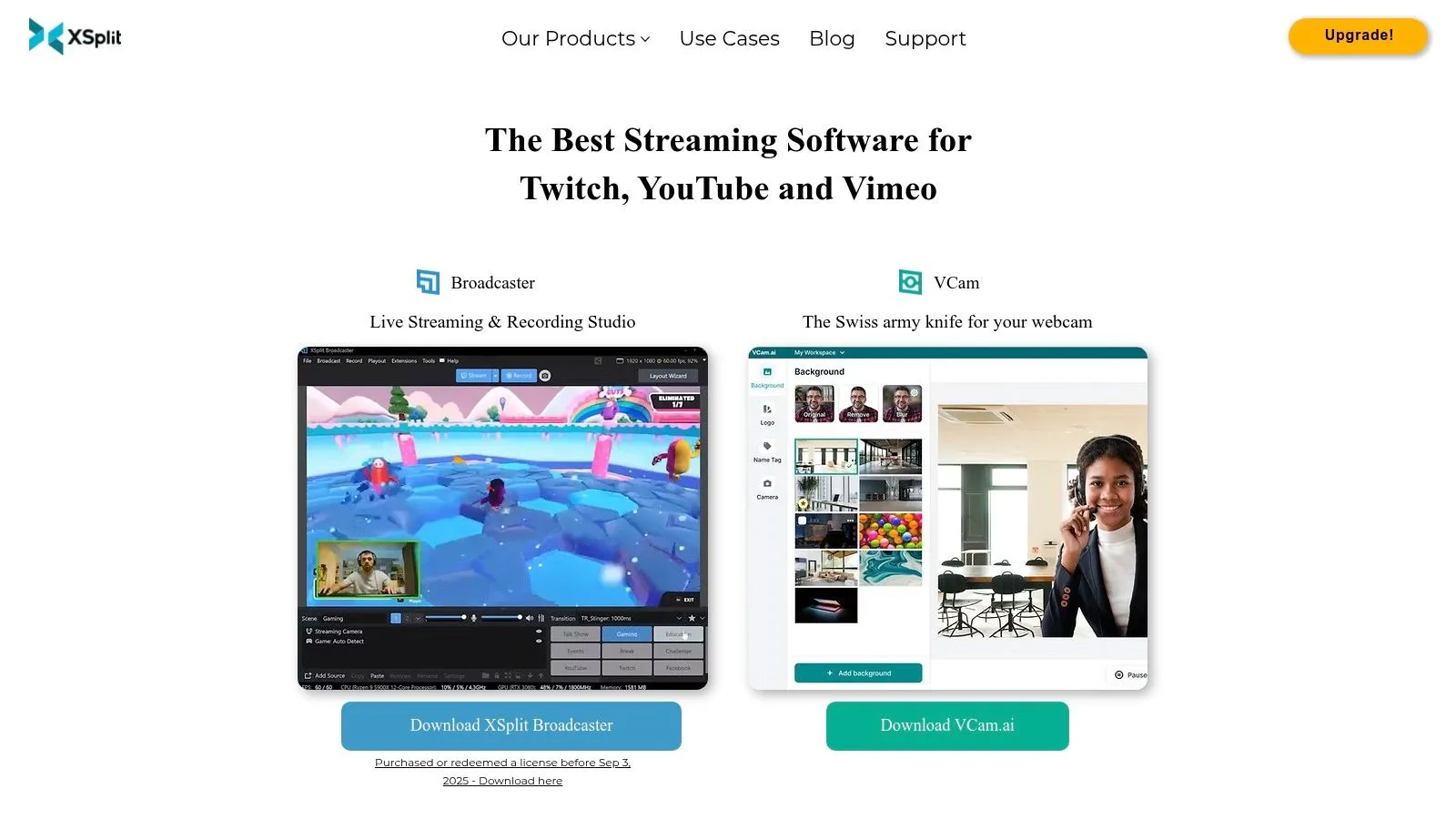
While XSplit is a powerful desktop encoder for live events, its stable performance also makes it a great tool for producing the content that fuels a 24/7 stream. You can use it to record high-quality, long-form video files with multiple scenes and sources, which can then be handed off to a cloud-based streaming service. This hybrid approach allows for professional production quality without the risk of running a continuous stream from a local machine.
Key Features & Use Cases
- Multistreaming Support: Natively stream to multiple platforms like YouTube, Twitch, and Facebook simultaneously, to reach more viewers.
- Polished User Interface: XSplit provides a clean, intuitive drag-and-drop interface that is easier for beginners than some open-source alternatives.
- Professional Tools: Includes a virtual camera, SRT (a low-latency streaming protocol) support and an AI background remover.
- Plugin & Extension Store: Expand the software’s capabilities with a variety of plugins and extensions for deeper integration with other services and tools.
Platform Breakdown
| Feature | Details |
|---|---|
| Pricing | Freemium model. The Free version has limitations (e.g., watermarks). Premium licenses unlock all features and are available via subscription or lifetime purchase. |
| Ideal Use Case | Creators and event producers who want a powerful, easy-to-use desktop application with professional support and are willing to pay for premium features. |
| Primary Limitation | The free version is quite restrictive, pushing users toward a paid license to remove watermarks and access the most powerful features like multistreaming. |
| 24/7 Streaming Note | Like OBS, XSplit is best for preparing and recording the video loops for a 24/7 broadcast, not for running the always-on stream directly from your desktop. |
Pro Tip: Take advantage of XSplit’s Scene Preview Editor. It allows you to edit a scene live without your audience seeing the changes, which makes transitions during your broadcast smoother.
Official Website: https://www.xsplit.com/
5. vMix
vMix is a professional-grade, Windows-only live production and streaming software that brings broadcast studio capabilities to your desktop. It functions as a software video switcher, allowing you to mix multiple HD or 4K sources, including cameras, video files, and remote guests. Its power and stability make it a top choice for complex productions like sporting events, church services, and multi-camera talk shows.
For 24/7 content, vMix can run long broadcasts directly from a dedicated PC. You can build playlists and scenes that run for hours or days, which makes it a workable option for continuous streams if you keep that PC and its connection running.
Key Features & Use Cases
- vMix Call: Easily integrate up to 8 remote guests into your broadcast directly from their web browser, making interviews and collaborative streams simple.
- Instant Replay: A broadcast-level feature that allows you to capture and replay key moments during a live event, useful for sports or gaming streams.
- Advanced Protocol Support: Native support for NDI and SRT allows for high-quality, low-latency video transmission over local networks or the public internet.
- Multi-Destination Streaming: Simultaneously stream your production to YouTube, Facebook, Twitch, and custom RTMP servers from a single application.
Platform Breakdown
| Feature | Details |
|---|---|
| Pricing | Tiered Lifetime Licenses ($60 to $1,200) and a $50/month subscription (vMix website, September 2026). |
| Ideal Use Case | Professional event producers, houses of worship, sports broadcasters, and creators needing broadcast-level features and stability for multi-source live productions. |
| Primary Limitation | It is Windows-only, with no native macOS support, and its extensive feature set presents a steeper learning curve than simpler browser-based tools. |
| 24/7 Streaming Note | Can run a 24/7 stream from a dedicated local machine. The stream stops if that machine, its power or its internet connection fails. |
Pro Tip: Take advantage of the 60-day free trial to fully explore all features before committing to a license. Test your hardware compatibility thoroughly, as vMix performs best on systems with dedicated GPUs.
Official Website: https://www.vmix.com/purchase/
6. Wirecast (by Telestream)
Wirecast is a professional live production and streaming application for creators and organizations. It serves as an all-in-one studio, providing advanced tools like layer-based compositing, multi-destination streaming, and remote guest features directly within its interface. This makes it a strong choice for complex broadcasts.
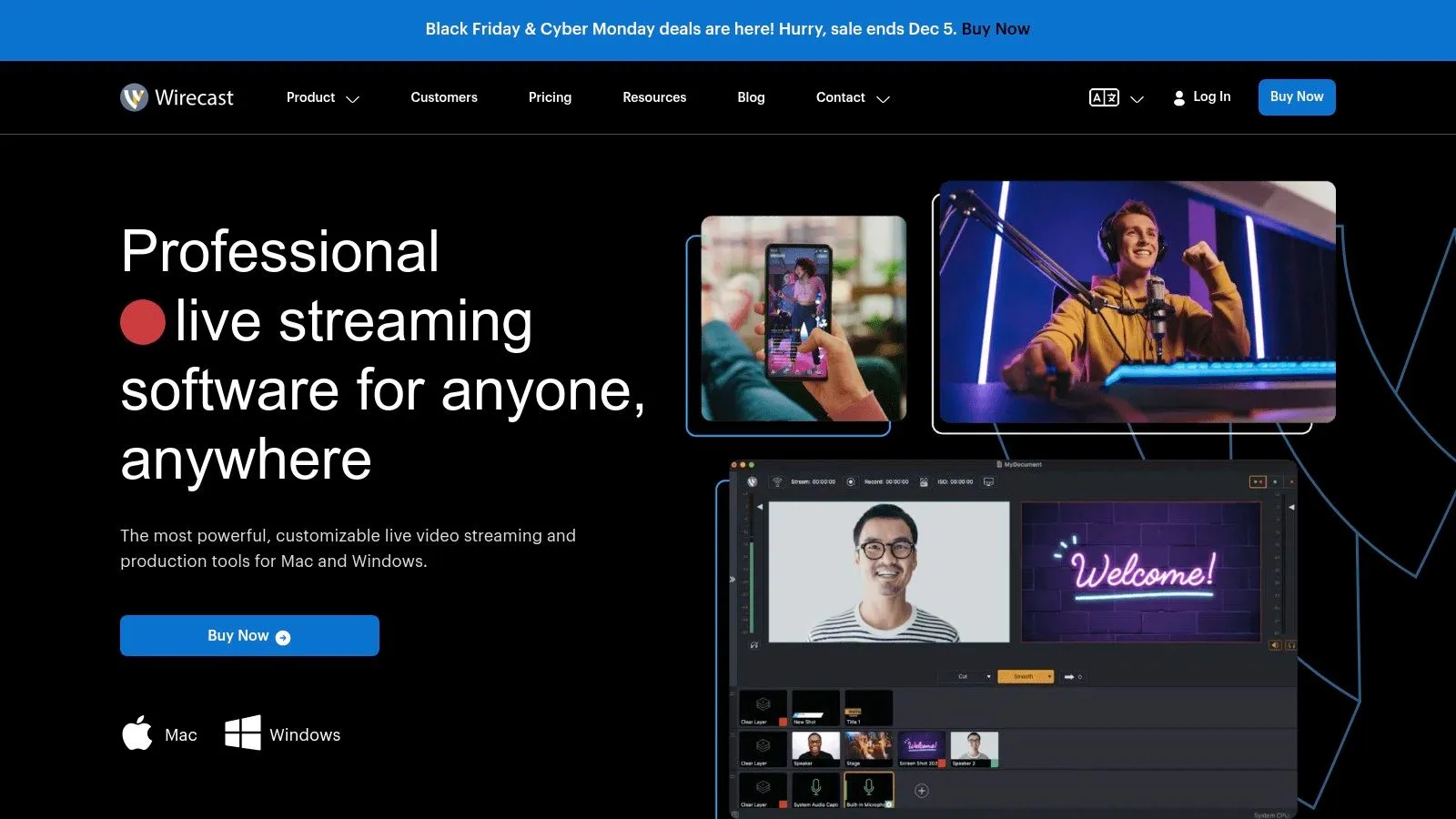
While its power is often used for live events, Wirecast is also an excellent tool for pre-producing sophisticated video content destined for a 24/7 stream. You can use its professional toolset to record polished, multi-layered video files that include integrated graphics, lower thirds, and guest interviews. These recordings can then go to a cloud streaming service for around-the-clock broadcasting, without running a local PC continuously.
Key Features & Use Cases
- Layer-Based Compositing: Build scenes by layering up to 250 sources, including cameras, graphics, and pre-recorded video, with full control over placement and transitions.
- Built-in Remote Guests: Easily bring in remote guests with Wirecast Rendezvous, a peer-to-peer conferencing system built directly into the software.
- Advanced Production Tools: Features like PTZ camera control, ISO recording of individual sources, and an integrated stock media library make it a complete production suite.
- Multi-Destination Streaming: Simultaneously stream to YouTube, Facebook, Twitch, and custom RTMP destinations without needing a separate restreaming service.
Platform Breakdown
| Feature | Details |
|---|---|
| Pricing | Premium one-time purchase with different tiers (Wirecast Studio and Wirecast Pro). |
| Ideal Use Case | Businesses, houses of worship, educational institutions, and professional creators who need an all-in-one, reliable desktop application for high-production-value live events. |
| Primary Limitation | The premium price point places it out of reach for many beginners, and the license is typically tied to one machine, limiting flexibility compared to cloud-based tools. |
| 24/7 Streaming Note | Like other desktop encoders, Wirecast is best suited for producing the high-quality video assets for a 24/7 stream. Relying on it for the continuous broadcast itself introduces risks related to local hardware and internet stability. |
Pro Tip: Use the ISO recording feature to capture clean, isolated feeds of all your cameras and sources. This gives you more options for post-production editing or creating on-demand versions of your live content.
Official Website: https://www.telestream.net/wirecast/
7. Ecamm Live (macOS)
Ecamm Live is a live production studio for Mac users. It is easier to learn than more complex software, which makes it popular with creators who want a simple workflow. Its deep integration with macOS and native YouTube support allows for quick setup and one-click streaming.
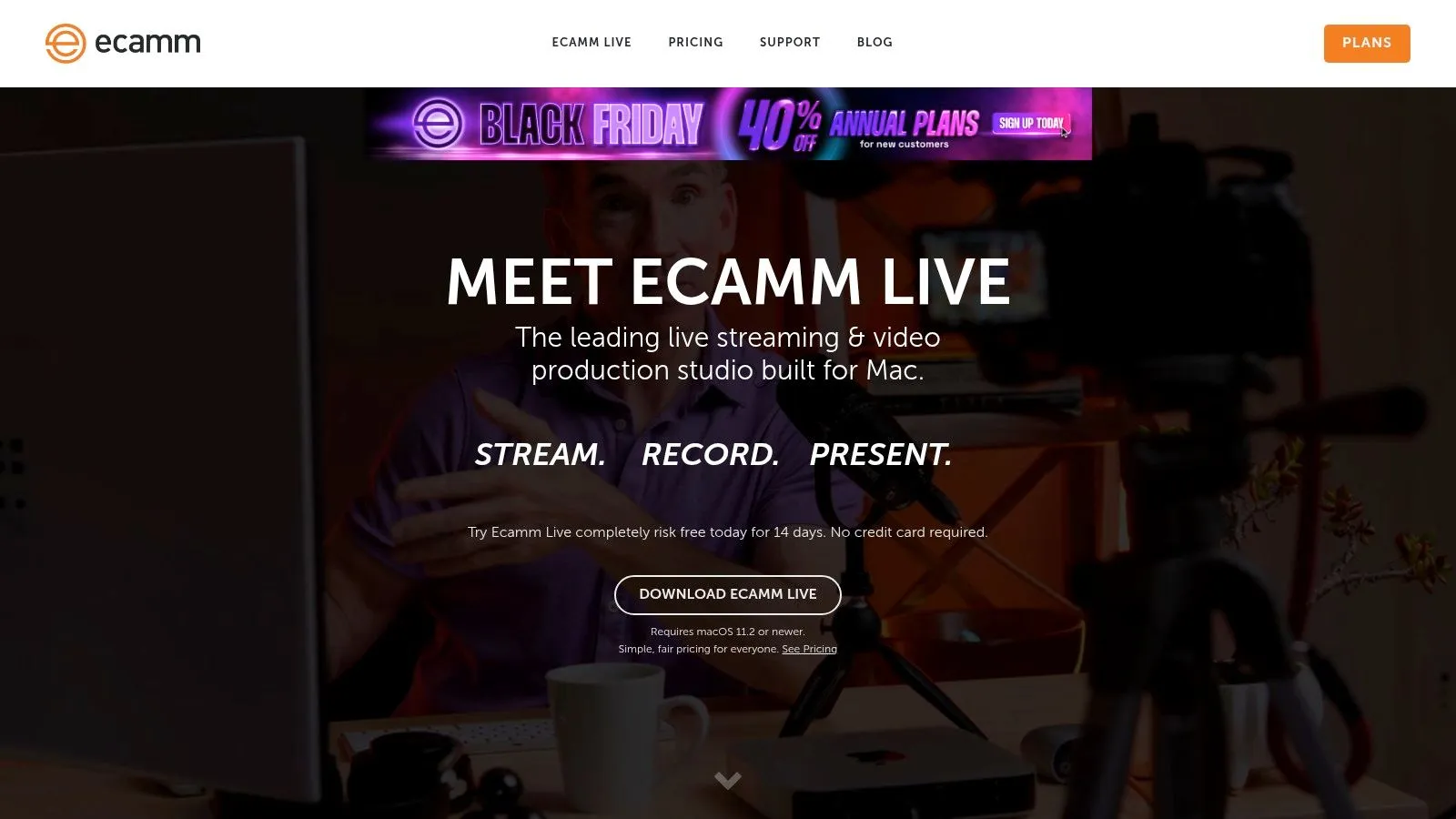
While primarily designed for live, interactive events, Ecamm Live is also an excellent tool for preparing content for a 24/7 stream. You can use its scene and overlay features to record high-quality, pre-produced segments with professional graphics, which can then be looped using a dedicated 24/7 cloud streaming service. This way you use Ecamm to create the content, and a server runs the continuous stream.
Key Features & Use Cases
- Native YouTube Integration: Go live on YouTube with a single click, complete with support for scheduling, chat comments, and stream health monitoring directly within the app.
- Interview Mode: Easily bring in remote guests for interviews or panel discussions, a key feature for podcasters and talk show hosts.
- Scenes and Overlays: Drag-and-drop functionality lets you build dynamic scenes with screen sharing, video files, camera feeds, and custom branding.
- High-Quality Recording: Record isolated video and audio tracks (ISO recording) in ProRes format, for more options in post-production.
Platform Breakdown
| Feature | Details |
|---|---|
| Pricing | Subscription-based, starting at $20/month (or $16/month billed annually). A 14-day free trial is available. |
| Ideal Use Case | Mac-based creators, podcasters, marketers, and educators who want a powerful, user-friendly tool for creating polished live or pre-recorded video content. |
| Primary Limitation | It is macOS only, with no support for Windows or Linux users. The most advanced features, like ISO recording, are locked behind the more expensive Pro plan. |
| 24/7 Streaming Note | Good for producing the high-quality video loops and segments for a 24/7 broadcast. The final recording can be uploaded to a cloud platform for continuous playback. |
Pro Tip: Use the virtual camera and virtual mic features to pipe your professionally produced Ecamm Live output into other applications, like Zoom or Teams, in meetings.
Official Website: https://www.ecamm.com/mac/ecammlive/
8. StreamYard
StreamYard is a browser-based studio for creators who want simple setup, remote guests and branding. It eliminates the need for software installation, allowing you to produce high-quality talk shows, interviews, and webinars directly from a web browser. Its core strength is its simple guest management, which makes it one of the easiest ways to bring multiple remote participants into your YouTube live stream.
While primarily designed for live, interactive events, StreamYard can be a valuable tool in a 24/7 streaming workflow. You can use its cloud recording feature to produce a polished, multi-person interview or presentation. You can download this recorded file and add it to a playlist for a continuous broadcast, without complex desktop software.
Key Features & Use Cases
- Browser-Based Studio: No downloads required. You can go live from nearly any modern computer with a webcam and microphone, making it extremely accessible.
- Simple Guest Experience: Inviting guests is as simple as sending them a link. They can join from their desktop or mobile device without creating an account.
- Branding & Overlays: Easily add your own logos, banners, video clips, and on-screen comments to brand your broadcast.
- Multistreaming: Paid plans allow you to simultaneously broadcast your stream to YouTube, Facebook, LinkedIn, and other platforms.
Platform Breakdown
| Feature | Details |
|---|---|
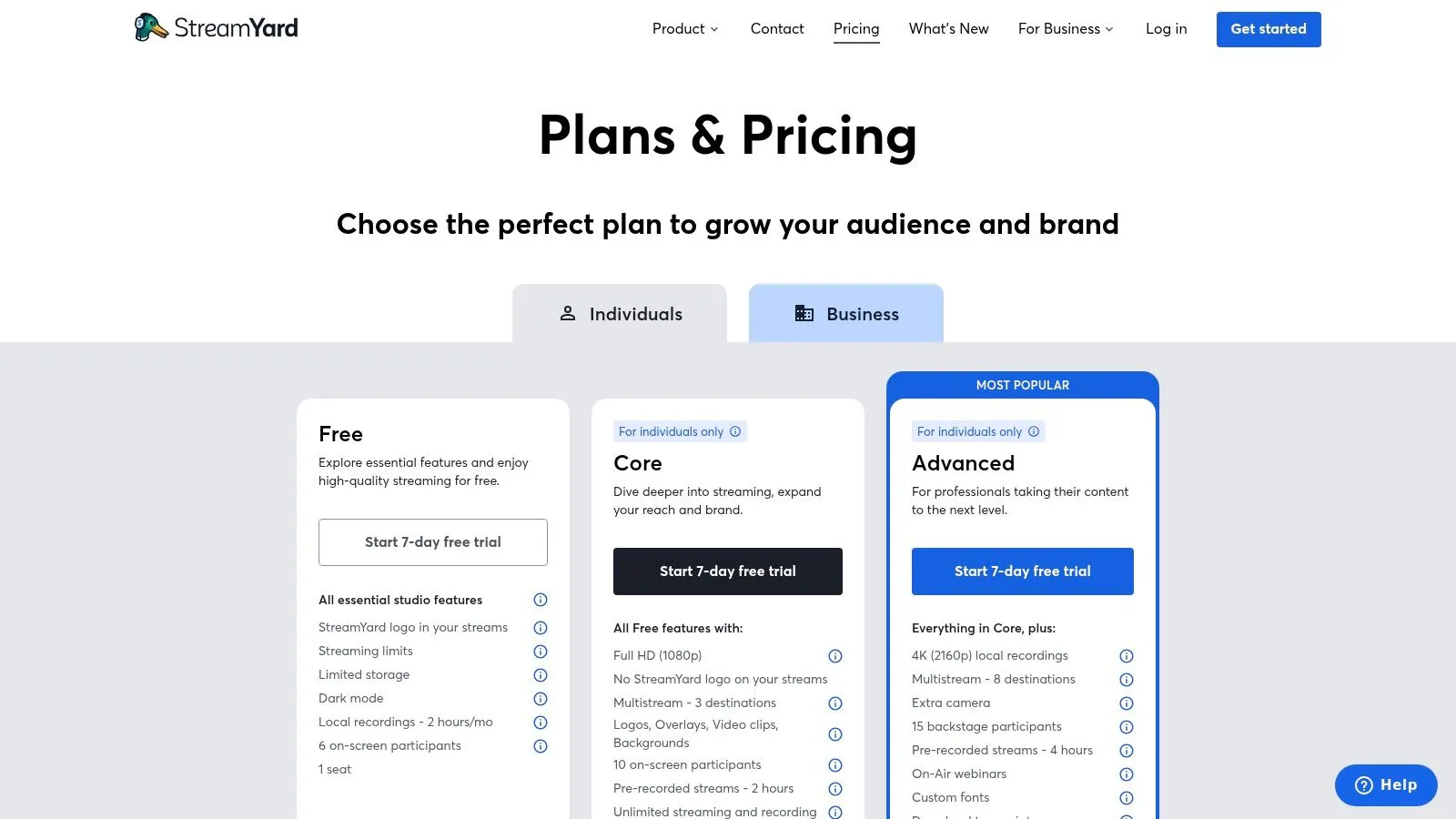
| Pricing | Free plan with StreamYard branding and limitations; Paid plans start at $35.99/month billed annually (StreamYard website, September 2026). |
| Ideal Use Case | Podcasters, interviewers, educators, and brands needing a reliable, easy-to-use platform for hosting multi-person live shows and webinars. |
| Primary Limitation | The free version includes prominent StreamYard branding. Advanced production capabilities like complex scene transitions or plugins are not available. |
| 24/7 Streaming Note | Excellent for creating polished, pre-recorded interview segments to be looped in a 24/7 stream, but not designed for broadcasting a continuous stream directly. |
Pro Tip: Use the "Brand" tab to set up all your visual assets like logos, color schemes, and overlays before you go live. Then your branding is in place from the moment you start.
Official Website: https://streamyard.com/pricing
9. Restream (including Restream Studio)
Restream is a cloud-based service known for multistreaming, and it also offers other tools. Its standout feature is the ability to send a single stream from your encoder (like OBS) to Restream's servers, which then broadcast it to multiple destinations like YouTube, Twitch, and Facebook simultaneously. This reduces the load on your local computer and internet connection, because you upload only one stream.
Beyond multistreaming, Restream provides its own browser-based live production tool, Restream Studio, for quick streams without desktop software. For 24/7 channels, Restream's scheduling feature is particularly useful. You can upload a pre-recorded video file and schedule it to go live across all your platforms, so the broadcast does not need your PC to be on.
Key Features & Use Cases
- Multistreaming: The core feature that allows you to broadcast to 30+ platforms at once from a single source, to reach more viewers.
- Restream Studio: A browser-based studio with custom graphics, guest interviews, and screen sharing.
- Upload & Stream: Schedule pre-recorded videos to broadcast as live events, useful for a regular stream schedule or for premiering content.
- Unified Chat: View and respond to messages from all your connected streaming platforms in a single, convenient chat window.
Platform Breakdown
| Feature | Details |
|---|---|
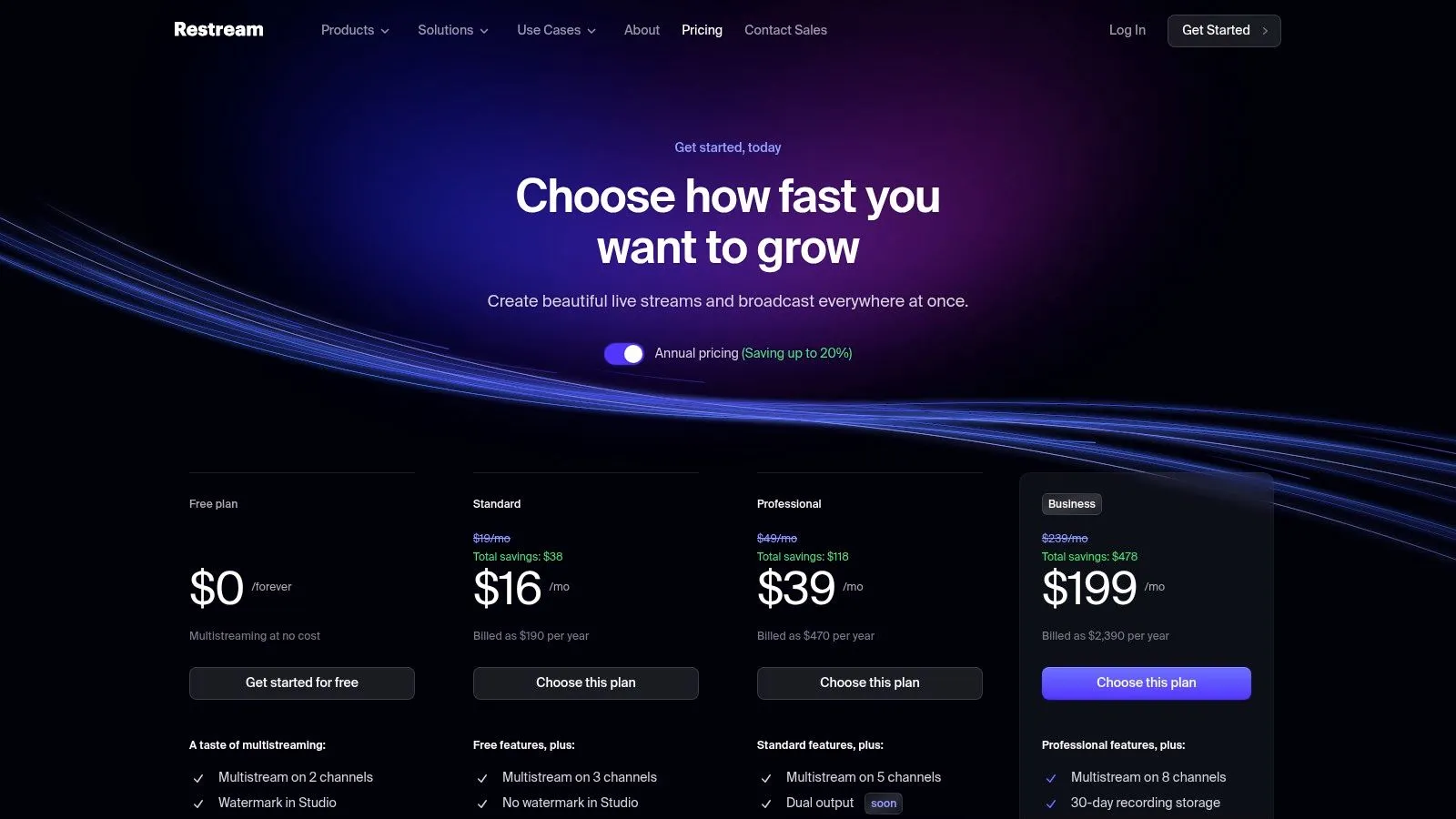
| Pricing | Free plan available with Restream branding. Paid plans start at $19/month, or about $15/month billed annually (Restream website, September 2026). |
| Ideal Use Case | Creators wanting to expand their audience by streaming to multiple platforms simultaneously, or those needing a simple way to schedule pre-recorded content. |
| Primary Limitation | The free plan is limited in destinations and includes Restream branding. Advanced features like 1080p streaming and custom RTMP are locked behind paid tiers. |
| 24/7 Streaming Note | Good for scheduling pre-recorded video loops to maintain a consistent live presence, but not designed for true, continuous 24/7 broadcasting from a single file. |
Pro Tip: Combine OBS Studio with Restream. Use OBS for powerful scene creation and production, then use Restream as your destination to handle the multistreaming. This is a common and effective workflow to stream to multiple platforms without overloading your system.
Official Website: https://restream.io/pricing
10. PRISM Live Studio
PRISM Live Studio is a free mobile and desktop application for creators who want to stream from anywhere. It offers features often found in paid software, such as multistreaming and creative overlays, directly on your smartphone. This makes it a good choice for on-the-go streaming, IRL (in-real-life) broadcasts, and mobile gaming sessions.
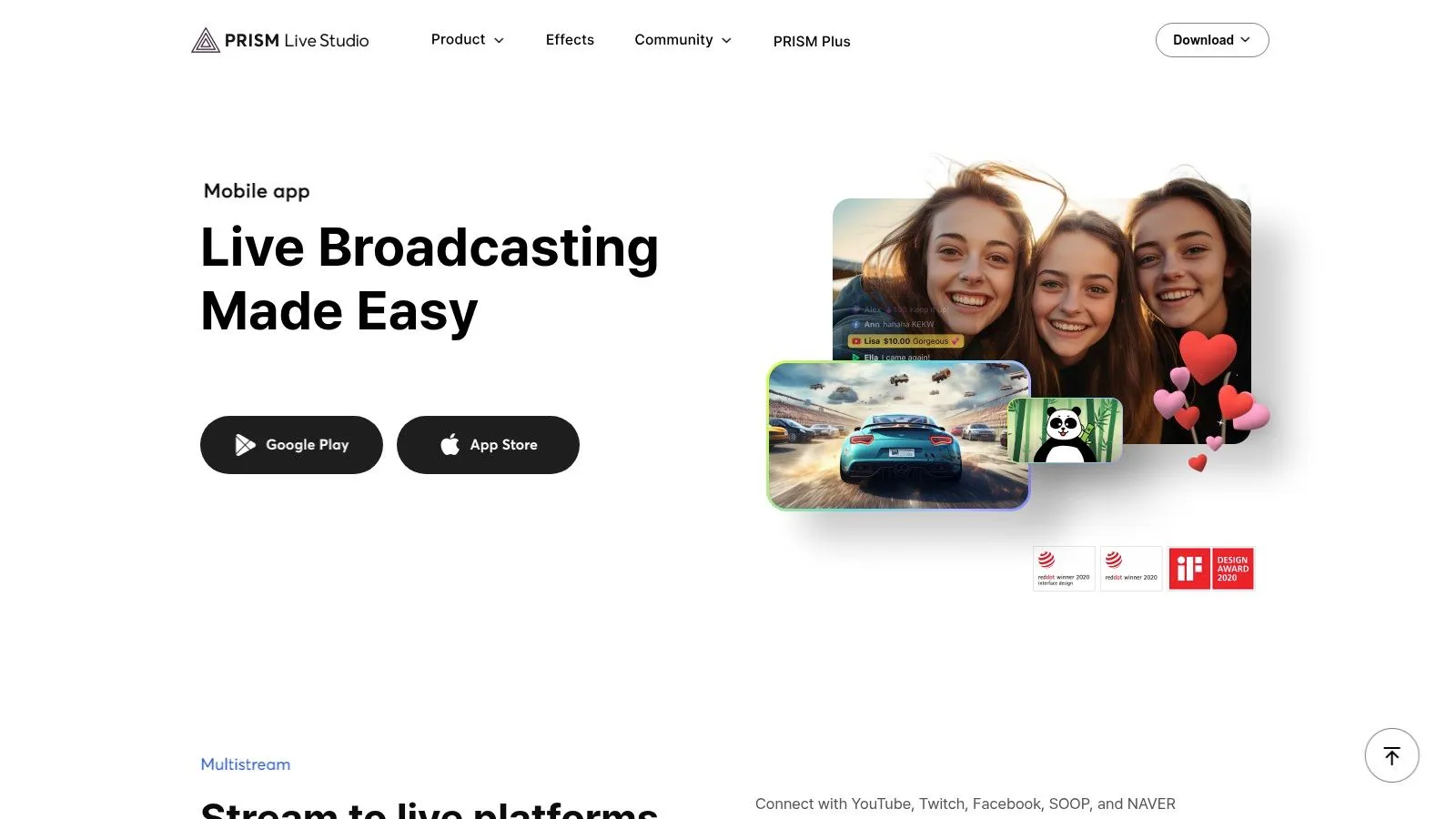
While primarily a live production tool, PRISM's desktop version can also be used to create video content that you can later loop for a 24/7 stream. Its user-friendly interface simplifies adding fun, interactive elements like animated text, stickers, and even VTuber avatars without needing complex setups. This makes it a good piece of YouTube live stream software for new creators.
Key Features & Use Cases
- Free Multistreaming: Simultaneously broadcast to up to six platforms, including YouTube, Twitch, and Facebook, directly from the mobile or desktop app at no cost.
- Creative Overlays & Effects: Add built-in widgets, animated text, background music, and unique beauty and sticker effects.
- VTuber Avatars: Integrate your own VRM model to stream as a virtual avatar, a feature that typically requires more advanced software.
- Mobile Screen Sharing: Easily share your mobile screen, which is useful for streaming mobile games or app tutorials directly to your audience.
Platform Breakdown
| Feature | Details |
|---|---|
| Pricing | Completely Free |
| Ideal Use Case | Mobile creators, IRL streamers, gamers, and VTubers looking for a free tool with creative and multistreaming features. |
| Primary Limitation | The feature set is less comprehensive than dedicated desktop switchers like OBS, and multistreaming is capped at fewer destinations than paid services. |
| 24/7 Streaming Note | Best for producing live segments or pre-recorded content with its creative tools, which can then be incorporated into a larger 24/7 broadcast schedule. |
Pro Tip: Use the mobile app's vertical streaming layout to create content optimized for YouTube Shorts, Instagram Reels, and TikTok, then multistream to all platforms simultaneously to reach more viewers.
Official Website: https://prismlive.com/en_us/mobile.html
YouTube Live Stream Software Comparison
| Product | Core features / Capabilities | Reliability & UX | Price | Target audience & main strength |
|---|---|---|---|---|
| 247 LiveStream | Cloud 24/7 streaming of uploaded videos and playlists, order/shuffle/loop, 1080p@30fps, RTMP/RTMPS output, 100 GB storage | Runs on cloud servers, computer can be off; automatic reconnect if the YouTube connection drops | $16/mo or $14/mo billed yearly per stream | Creators running permanent channels (lofi, ambient, radio); no local PC needed |
| OBS Studio | Scene-based production, RTMP, virtual camera, plugins, cross‑platform | Stable, large community, steeper learning curve | Free (open-source) | Power users & DIY streamers; highly extensible plugin ecosystem |
| Streamlabs | OBS-based desktop + web tools, templates, alerts, cloud backup, multistream | Easier setup, some instability after updates | Freemium; paid “Ultra” for advanced features | New creators who want quick monetization; integrated alerts, overlays, tipping |
| XSplit Broadcaster | Polished UI, multistreaming, 4K/60, AI background removal, SRT | User-friendly, frequent updates, best features paid | Freemium / paid licenses | Desktop streamers wanting polished production; 4K/60 & AI tools |
| vMix | Broadcast-grade switcher: instant replay, ISO, NDI/SRT, multiple outputs | Stable for long productions; Windows-only, steeper learning | Tiered licenses + lifetime options | Studios, churches, sports producers; pro broadcast features & hardware support |
| Wirecast | Layer-based compositor, PTZ control, ISO recording, presets | Enterprise-ready, mature feature set | Premium licensing | Organizations & enterprises; all-in-one reliable production tool |
| Ecamm Live | macOS-native, one-click YouTube, scenes, interview mode, ProRes recording | Very easy on Mac, Mac-first workflow | Subscription (Pro tier for advanced) | Mac creators & interview shows; native YouTube integration, simple UX |
| StreamYard | No-install browser studio, guest management, on-screen comments, cloud recording | Very accessible, guest-friendly | Freemium; paid plans remove watermark/enable 1080p | Interviews, webinars, branded shows; no software install, easy guests |
| Restream | Cloud multistream, Restream Studio, scheduling, analytics, team workspaces | Offloads fan‑out, solid scheduling | Freemium; paid tiers for more destinations/1080p | Multi-platform broadcasters & teams; scheduling + analytics |
| PRISM Live Studio | Mobile/desktop streaming, multistream, 1080p60, VTuber avatars, screen casting | Great mobile features, lighter than desktop switchers | Free | Mobile/on-the-go creators; VTuber & mobile-first tools |
Final Thoughts
There is no single best software for everyone. The right choice depends on your goals, your technical comfort level, your budget and the type of content you create. A multi-camera talk show needs a tool like vMix or Wirecast. A simple interview stream works well in StreamYard.
How to Choose Your Streaming Software
Start from your main goal. If you need something free to create content for your 24/7 stream, use OBS Studio. If you use a Mac and want a simple tool to record your video loops, try Ecamm Live. If you need to record remote interviews for your continuous broadcast, use StreamYard or Restream.
A continuous, always-on stream has different needs. For lofi music, ambient soundscapes, relaxation content or curated video playlists, desktop software needs a dedicated computer that runs 24/7, a stable upload connection and regular checks. If that computer restarts or loses power, the stream stops.
Cloud-Based 24/7 Streaming
For a 24/7 stream of pre-recorded content, scene switching and live guests matter less. What matters is that the stream keeps running without your attention. A cloud-based service runs the stream on its own servers, so it does not depend on your computer, your power supply or your home connection.
If you want a 24/7 stream from pre-recorded videos, 247 LiveStream runs it from cloud servers at 1080p 30 FPS, for $16 per month or $14 per month billed yearly. Your computer can be off. See how 247 LiveStream works.