Trying to get your content noticed these days feels like shouting into the wind. The simple truth is, if you want to grow, you need to be everywhere your audience is. That's where multistreaming comes in—it's the strategy of broadcasting your live content to platforms like YouTube, Twitch, and Facebook all at the same time. It lets you reach more viewers without running separate broadcasts.
Why You Can't Afford to Ignore Multistreaming
Not too long ago, the standard playbook was to pick one platform and grind it out. You’d pour all your energy into building a community there, hoping for the best. That approach just doesn't cut it anymore. Your potential audience is spread out all over the place, a reality often called audience fragmentation.
The gamer who lives on Twitch might never see your YouTube shorts, and the tight-knit community you've built on a Facebook Group probably won't pack up and move to another site just because you ask.
Multistreaming is the direct answer to this problem. It’s no longer some secret trick for the pros; it's a foundational strategy for any creator who's serious about growth. Instead of trying to pull everyone to your little corner of the internet, you take your content directly to them. This turns a single broadcast into a multi-channel event.
Meet Your Viewers on Their Home Turf
Think about a musician doing a live jam session. By going live everywhere at once, they can connect with their super-fans on a dedicated music platform while simultaneously catching the eye of casual listeners scrolling through Instagram Live. You get to serve different crowds on different platforms, all in one go.
The media landscape has changed. A May 2025 report from Nielsen found that streaming now dominates traditional TV in the United States, pulling in 44.8% of all television usage. That's more than broadcast and cable combined. If you want to dig deeper, you can check out Nielsen's full analysis on streaming's dominance.
When you choose not to multistream, you're essentially putting up a "closed" sign for entire communities. It's like opening a shop on only one street in a huge city, hoping everyone finds their way to you.
Expand Your Reach
The biggest benefit of multistreaming is simple: more viewers can see your content. Every new platform you add is another stage to perform on, each with its own unique audience and algorithm ready to discover you.
For anyone focused on growth, this opens up some huge advantages:
- Diversify Your Audience: You're no longer at the mercy of a single platform's algorithm or random policy changes. If one channel hits a slump, another can keep the momentum going.
- Build Community Quicker: Engaging with viewers across YouTube, Facebook, and Twitch in the same stream can create a larger community than you could build on just one.
- Promote Across Platforms: It's the most natural way to get your Twitch viewers to subscribe on YouTube or your Facebook followers to check out your other channels. You can consolidate your fanbase and build a stronger brand that spans the entire web.
Choosing Your Multistreaming Method
So, you want to stream to multiple platforms at once. Great decision! The first thing you need to figure out is how you're going to pull it off. There are a few different ways to do this, and each one comes with its own quirks—some are easier, some are cheaper, and some will make your computer work a lot harder.
Your choice really boils down to your budget, your technical comfort level, and what you’re trying to accomplish. We'll walk through the three main routes: using a dedicated restreaming service, handling it all yourself with local software, or going full-pro with your own custom server.
This handy visual can help you see which path might make the most sense for you right from the start.
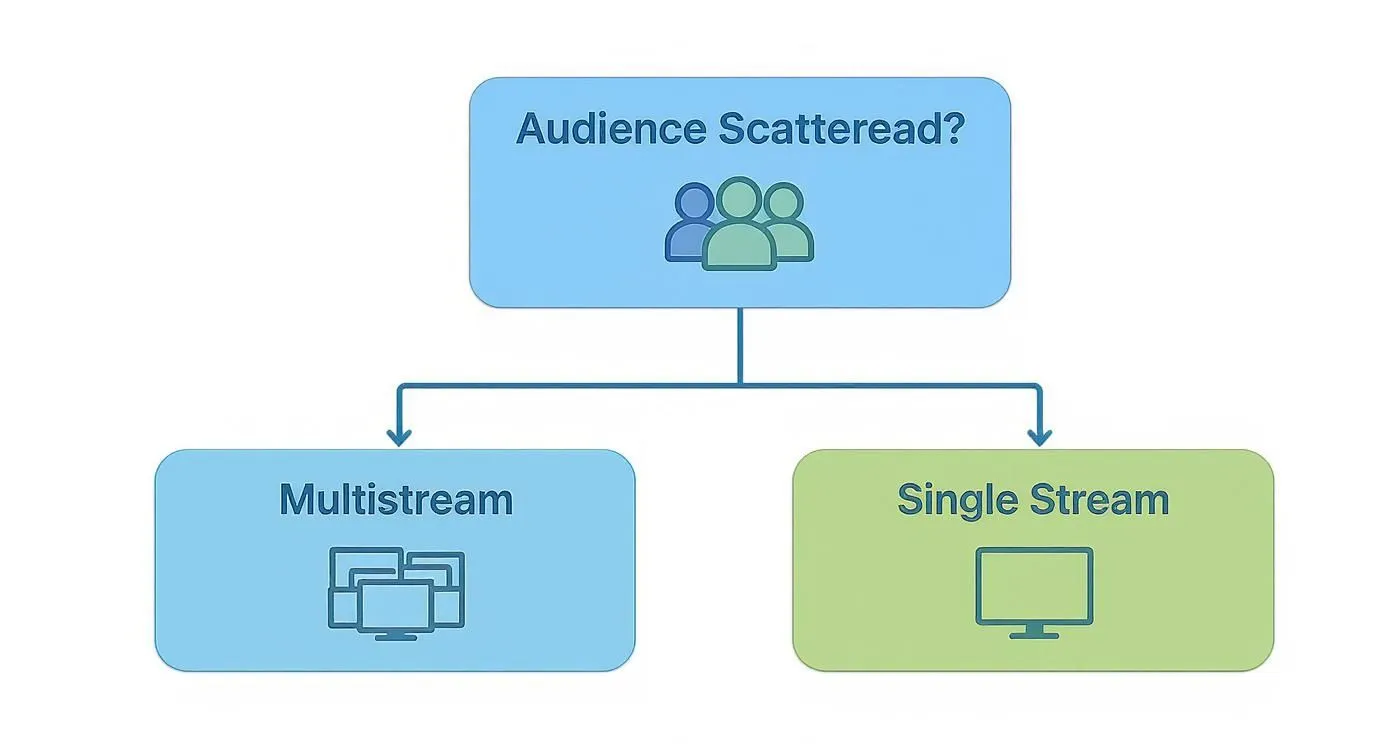
As you can see, if your audience is spread out across different platforms, multistreaming is a no-brainer for reaching them all. Now, let’s pick the right tool for the job.
Dedicated Restreaming Services
This is, without a doubt, the most popular and straightforward way to get started. Think of a restreaming service like a middleman for your broadcast. You send one single, high-quality stream from your PC to their servers, and they do the heavy lifting of sending it out to YouTube, Twitch, Facebook, and wherever else you want to be.
This approach suits creators who just want things to work without a fuss. If you value simplicity and don't want your gaming or work PC to grind to a halt, this is the way to go.
- Pros: Super easy to set up, barely impacts your computer's performance, often includes cool features like a unified chat box.
- Cons: The best features are usually behind a monthly subscription, and you're trusting a third-party with your stream.
Local Software Plugins
If you're more of a DIY person and want to avoid monthly fees, you can handle multistreaming directly from your own computer. The most common tool for this is the "Multiple RTMP Outputs" plugin for OBS Studio. It lets your broadcasting software send your stream to several destinations at the same time.
But this power isn't free—it costs you in performance. Your computer’s processor and your internet connection have to do all the work. For every platform you add, you’re putting more strain on your CPU and, just as importantly, eating up more of your upload bandwidth.
Key Takeaway: Going the local plugin route gives you total control for free, but you'll need a powerful computer and a stable, high-speed internet connection to avoid a choppy, buffering stream.
Custom Server Solutions
This is the expert-level option, usually reserved for businesses or streamers with very specific technical needs. It involves setting up your own private server—either a physical machine in your office or a virtual one in the cloud—to act as your own personal restreaming hub. You send your stream to your server, and the server distributes it.
Honestly, this is overkill for most individual creators. But if you need complete control over every step of your stream's journey and have the skills to manage a server, it offers the most flexibility. No matter which path you take, they all rely on the same foundational tech. You can learn more about it in our guide on what is RTMP and how it works.
Comparison of Multistreaming Methods
To help you decide, let's put these three methods side-by-side. Seeing the trade-offs clearly can make the choice much easier.
| Method | Best For | Ease of Use | PC Performance Impact | Cost |
|---|---|---|---|---|
| Restreaming Service | Simplicity and reliability | Very Easy | Low | Subscription-based |
| Local Plugin (OBS) | Control and no subscription fees | Moderate | High | Free (hardware costs) |
| Custom Server | Maximum flexibility and scale | Difficult | Low (on PC), High (on server) | Variable (server costs) |
So, what's the verdict? The best method is the one that fits your workflow, budget, and tech skills without causing you headaches. For the vast majority of streamers, starting with a dedicated restreaming service is the fastest and most reliable way to go live everywhere.
Using a Restreaming Service: The Easiest Way to Go Live Everywhere
If you're looking to stream to multiple platforms without turning your computer into a jet engine, a restreaming service is the simplest choice. It is the most popular method because it is simple and light on your system's resources.
Think of a service like Restream or Castr as a middleman for your broadcast. You send one clean, high-quality stream from your encoder (like OBS or Streamlabs) to their servers. They then do all the heavy lifting, duplicating and sending that stream out to YouTube, Twitch, Facebook, and wherever else you want to be seen.
The biggest win here is that your PC and internet connection are completely off the hook. Instead of chugging along trying to push out three or four separate streams, your setup only has to handle one.
Getting Your Accounts Connected
First things first: sign up for the service you've chosen and get logged into your dashboard. Your initial task is to add your "destinations," which is just a fancy term for the platforms you want to stream to.
You'll see a big button that says something like ‘Add Destination’ or ‘Add Channel.’ Clicking it will pull up a menu of all the platforms they support.
- For the big players like YouTube and Twitch, it's usually a one-click process. The service will prompt you to log into your account and authorize it to stream for you. It's secure, quick, and painless.
- For other platforms, you might have to go the "Custom RTMP" route. This just means you'll need to copy and paste the platform’s Server URL and Stream Key into the service.
The good news is that you only have to do this once for each platform. After a destination is added, it’s saved and ready for all your future streams.
Here’s a glimpse of a typical dashboard where you'd be adding your channels. It's designed to be as straightforward as possible.
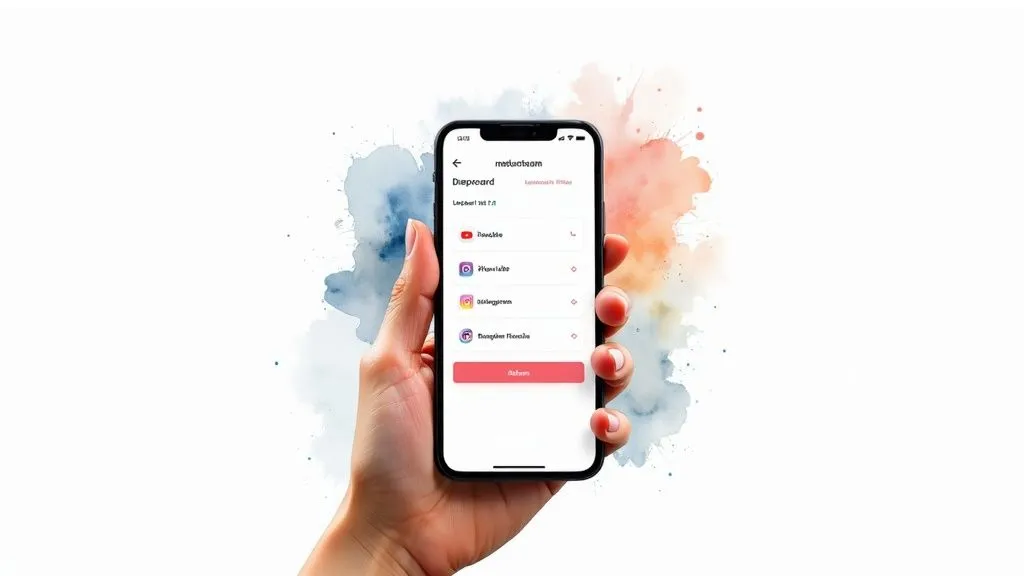
Once everything is connected, you can manage all your destinations from one dashboard.
Centralized Stream Management
One of the best perks of using a service is controlling your entire multistream from one place. Before going live, you can set your stream title, description, and game category for all platforms at the same time. Gone are the days of frantically tabbing between YouTube, Twitch, and Facebook to update your stream info.
Pro Tip: This unified control saves time. Let’s say you spot a typo in your title mid-stream. Instead of a mad dash to fix it on each site, you just change it once in your restreaming dashboard, and the update pushes out everywhere automatically.
This centralized approach also makes audience interaction a breeze. Most of these services have a unified chat box that pulls in comments from all your platforms into one feed. You can see what your YouTube viewers are saying right next to your Twitch chat, making it so much easier to engage with your whole community in real-time.
Configuring Your Broadcasting Software
With your destinations locked in, the last piece of the puzzle is pointing your broadcasting software—like OBS Studio—to the restreaming service. This is surprisingly simple.
You're no longer going to use your individual Twitch or YouTube stream key in OBS. Instead, you'll use the unique one provided by your restreaming service.
- Grab your new key. Head to your restreaming dashboard and find the RTMP URL and Stream Key they provide for you.
- Open your OBS settings. Navigate to
File > Settings > Stream. - Choose your service. In the "Service" dropdown, you can often find your provider listed (e.g., Restream.io). If not, just select "Custom."
- Plug in the details. Copy and paste the Server URL and Stream Key from the service into the fields in OBS.
- Go live! Click ‘Apply’ and ‘OK.’ Now, when you hit "Start Streaming" in OBS, your signal goes straight to the restreaming service, which then broadcasts it out to all your connected channels.
This setup is particularly effective for creators aiming for a constant presence. For those looking to broadcast pre-recorded videos, exploring what is 24/7 live streaming can unlock new ways to keep your channels active even when you're offline. Combining a restreaming service with scheduled content can keep all your platforms active around the clock.
Going Live with OBS and Local Plugins
For those of us who like to keep things in-house and avoid another monthly subscription, multistreaming directly from your own computer is a good option. Instead of routing your stream through a third-party service, your PC becomes the command center. This method uses a free plugin for OBS Studio called the Multiple RTMP Outputs plugin.
This little tool basically teaches OBS how to push your stream to several destinations at once. It’s a completely free way to get your content in front of more eyes, but there's a catch: your computer and your internet connection are doing all the heavy lifting. This setup is ideal for creators with a beefy PC and a solid internet plan who want total control over their broadcast.
Installing the Multiple RTMP Outputs Plugin
Getting this plugin set up is simple. First things first, you'll need to grab the download from the official OBS Project plugin repository. I can't stress this enough: always get your plugins from trusted sources to keep your setup secure.
Once you have the file, the installation is dead simple:
- Make sure OBS Studio is completely closed.
- Run the installer you just downloaded. It knows exactly where to put the files.
- Fire up OBS Studio again. You should see a brand-new panel labeled "Multiple Outputs."
If the panel doesn't pop up on its own, just go to the Docks menu at the top of the screen and make sure Multiple Outputs is checked. Now you're all set to start adding your destinations.
Configuring Your Stream Destinations
Think of this new panel as your multistreaming dashboard. Your main stream—the one you set up in Settings > Stream—works just like it always has. The plugin is for adding all your extra destinations.
In the Multiple Outputs panel, click "Add new target." A small window will appear asking for the essential details for each new platform.
- Name: Give it something obvious, like "YouTube Stream" or "Facebook Live."
- RTMP Server: This is the server URL you get from the streaming platform (e.g., YouTube, Twitch). It almost always starts with
rtmp://. - RTMP Key: This is your unique stream key. It's a long, jumbled string of characters that proves you're allowed to broadcast to that channel.
You'll have to hunt down this information for every platform you add. On YouTube, you can find it in the YouTube Studio when you set up a live stream. On Twitch, it's waiting for you in your Creator Dashboard under the "Stream" settings.
Crucial Tip: Your stream key is a password. Treat it like one. If you share it, anyone can stream to your channel. Keep it safe, and if you think it's been compromised, regenerate a new one immediately.
Managing Performance and Bandwidth
Okay, this is where you need to be smart about your resources. Unlike a restreaming service that uses its own servers, this local method puts the entire workload on your PC and internet connection. You're pushing out multiple high-quality video streams at the same time, which is demanding on your CPU and your upload speed.
For your internet, you need enough upload bandwidth to handle every stream combined. A good way to estimate this is to add up the bitrate for your main stream and each additional stream.
Let's run a quick scenario:
- You're sending your main stream to Twitch at 6,000 kbps (6 Mbps).
- You want to add a second stream to YouTube at 12,000 kbps (12 Mbps), YouTube's recommendation for 1080p at 60 fps.
- Your total required upload speed is now 18,000 kbps, or 18 Mbps.
I always recommend having a buffer of about 20-30% on top of that to keep things stable. So for this example, a plan with at least 22-24 Mbps upload speed is what you'd want. Getting the bitrate right is a huge part of stream quality, and you can learn all the details in our guide to choosing a bitrate for streaming.
On the hardware front, every extra stream makes your encoder work that much harder. If you start noticing your game stutters or the stream looks choppy, your CPU is probably overloaded. A quick fix is to lower the encoder preset for your additional outputs in the plugin's settings (for example, dropping from 'Medium' to 'Fast' or 'Veryfast'). This eases the load on your CPU, and while it might slightly reduce the video quality of that secondary stream, it's a great trade-off for keeping your whole system running smoothly.
Making Your Stream Look Great Everywhere
Broadcasting to multiple platforms is one thing, but making it look good on each of them takes more work. Simply pushing the same feed everywhere can feel lazy and disconnect you from the very communities you're trying to build.
The goal is to tailor your stream, not just syndicate it. This means getting to know the unique quirks, audience expectations, and technical specs of each platform. Think of it like this: you wouldn't wear the same outfit to a formal dinner and a backyard barbecue. The same idea applies here—what works for YouTube's cinematic feel won't fly on TikTok's fast-paced vertical scroll.

Tailoring Your Visuals for Each Destination
The most glaring difference you'll encounter is the video format. Forcing a standard 16:9 widescreen stream into a vertical-first app like TikTok or Instagram is a common mistake. Your content gets squeezed between large black bars.
You have to design your broadcast with every destination in mind from the get-go.
- For Horizontal Platforms (YouTube, Twitch, Facebook): Stick to the classic 1920x1080 (1080p). It’s the standard that audiences on these platforms expect, with a good balance of quality and performance.
- For Vertical Platforms (TikTok, Instagram, YouTube Shorts): Here, you need a 9:16 aspect ratio, meaning a 1080x1920 canvas. While some complex OBS Studio setups let you run a separate vertical stream, that's a lot to manage. A much simpler approach is to create a "safe zone" in the middle of your main stream, making sure all the important action can be easily cropped for vertical clips.
A Practical Takeaway: When you build your stream layout, picture a vertical rectangle right in the middle of your 16:9 screen. Keep your camera feed, gameplay, and any crucial text inside that box. This makes it easy to repurpose clips for vertical formats later without cutting off anything important.
Bitrate and Resolution: A Balancing Act
Getting your technical settings right is important for a smooth multistream. The challenge is to push the best possible quality to each platform without maxing out your internet connection or CPU. Sending a super high-bitrate stream to a service that can't handle it is just wasting precious bandwidth.
Here are the official recommendations for the most popular platforms:
| Platform | Recommended Resolution | Recommended Bitrate (Video) |
|---|---|---|
| Twitch | 1080p @ 60fps | 6,000 kbps (max) |
| YouTube | 1080p @ 60fps | 12,000 kbps (YouTube Help) |
| YouTube | 1080p @ 30fps | 10,000 kbps |
| Facebook Live | 1080p | Check Meta's current live video specifications |
Remember, if you're streaming from your local machine using an encoder plugin, these bitrates are cumulative. Sending 6,000 kbps to Twitch and 12,000 kbps to YouTube means your internet needs to handle 18 Mbps of upload speed consistently, and that’s without any buffer. This is where restreaming services help most: you only upload one high-quality stream to them, and they do the heavy lifting.
Managing Your Brand and Alerts
A strong, consistent brand helps people recognize your content immediately. But that doesn't mean your overlays should be a carbon copy everywhere. Each platform has its own culture and its own ways for viewers to interact.
For instance, a "New Subscriber" alert is fundamental on YouTube and Twitch, but it means nothing on a platform without a subscription feature.
Smart Branding Strategies:
- Universal Logo: Keep your channel logo or name in a consistent spot across all streams.
- Consistent Colors: Stick to your core brand colors for overlays but customize the text for alerts.
- Platform-Specific Alerts: Create unique alert styles for YouTube Super Chats, Twitch Bits, and Facebook Stars. This shows each audience that you value their specific method of support.
This level of detail makes every viewer feel like they are watching the main event, not just a mirror of a stream happening somewhere else.
Navigating Platform Exclusivity Rules
Before you hit "Go Live" everywhere, you absolutely must understand the rules of each platform, especially if you're monetized. The most famous (or infamous) example is the Twitch Affiliate and Partner Agreement.
For years, this agreement banned creators from streaming the same content on other platforms. While Twitch has loosened up on this, the rules can still be tricky. Generally, Affiliates are now allowed to multistream to services like YouTube or Facebook Live.
However, you should always check the latest version of your partner contract. Violating these terms can get your monetization suspended or, in the worst case, get you banned. Pleading ignorance won't help, so take five minutes to read the fine print and protect the channel you're working so hard to grow.
Multistreaming Questions I Hear All the Time
Jumping into multistreaming is a big move, and it's totally normal to have a few questions before you dive in. I've been doing this for a while, and these are the most common things people ask me. Let's clear up some of the confusion so you can get started with confidence.
Will Multistreaming Hurt My Channel Growth?
This is probably the number one fear I hear, and it makes sense. The worry is that you'll split your audience, right? But it's better to think of it as meeting different people where they already are.
A loyal YouTube viewer probably isn't going to jump over to Twitch just for you, and vice versa. By not being on their favorite platform, you're missing them completely. Multistreaming lets you be in multiple places at once, reaching viewers you'd otherwise never find.
The only real danger is ignoring platform rules. Twitch Affiliates and Partners, for example, must follow the terms of their current agreement. As long as you follow the rules and pay attention to each community, multistreaming is a good way to grow.
Do I Need a Powerful PC to Do This?
Not necessarily, but it really depends on how you multistream. This is where choosing your method makes all the difference.
- Using a Restreaming Service: This is the easy route for your PC. It has a very low impact because you’re just sending one high-quality stream to their servers. They do all the heavy lifting of sending it out to Twitch, YouTube, and everywhere else. Your computer works no harder than it would for a single stream.
- Using a Local Plugin (like OBS Multi-RTMP): This is where your PC will feel the burn. It has a high impact because your processor has to encode and push out a separate, complete stream for each platform. You'll need a powerful CPU and plenty of RAM to do this without your games or stream stuttering.
My Two Cents: If your PC already struggles a bit with modern games or encoding, don't even think about a local plugin. A restreaming service is the way to go. It keeps your stream smooth and your computer from overloading.
How Much Upload Speed Do I Really Need?
This matters a lot. A weak upload speed is a common cause of buffering and pixelation. And just like with PC power, the answer comes down to your setup.
If you’re using a restreaming service, you just need enough bandwidth for one solid stream. YouTube recommends 10 Mbps for 1080p at 30 fps, so a stable upload of about 13 Mbps or more is a good target.
But if you’re using a local plugin, get ready to do some math. You have to add up the bitrate for every single stream. Sending 6,000 kbps to Twitch and 12,000 kbps to YouTube? You'll need at least 18 Mbps of dedicated upload speed, and I’d recommend having a 20-30% buffer on top of that just to be safe.
Can I Actually See All My Chats in One Place?
Yes, and I consider it essential. Juggling multiple chat windows is hard. You'll miss messages and look completely disconnected from your audience.
Thankfully, most restreaming services have a unified chat feature built right in. It pulls all the comments from Twitch, YouTube, and Facebook into one clean feed. This lets you talk to everyone at once and build a single, unified community, even though they're on different sites. Some OBS plugins and third-party tools can do this too, but it’s a core feature of the dedicated services.
So, Restreaming Service or Plugin: Which is Better?
There’s no "best" answer here—it’s all about what's best for your specific situation. You're basically trading money and convenience for control and complexity.
- A restreaming service is your best bet if you want things to just work. It's simple, reliable, and takes all the technical strain off your computer.
- A local plugin is for the hardcore DIY-er. If you're on a tight budget but have a powerful PC and fast internet, this gives you total control over every technical detail.
For most people, especially if you're just starting out, I'd point you toward a restreaming service. It lets you skip the biggest technical headaches and just focus on making good content.
Thinking about running a 24/7 music station or a lofi loop? With 247 LiveStream, you can broadcast pre-recorded videos from cloud servers around the clock, over RTMP to YouTube and other RTMP platforms. Your computer can be off. Check it out at https://247livestream.live.