So, you want to stream on multiple platforms at once? The idea is simple: you broadcast your live content to several places like YouTube, Twitch, and Facebook simultaneously. This whole process is called multistreaming, or sometimes simulcasting.
It’s one of the most effective ways for creators to get in front of more people without having to create more content. You're basically casting a wider net, which is a massive shortcut to growing your audience and building out your online presence, especially for channels that are live 24/7.
Why Multistreaming Is a Game Changer for Growth
If you're serious about building a live audience, sticking to one platform is like fishing in a small pond when there's an entire ocean right next to it. The reality is that your potential viewers are scattered everywhere. Some live on YouTube, others are hardcore Twitch users. When you stream on multiple platforms, you go to them instead of waiting for them to find you.
This is especially true for creators running 24/7 live streams. An always-on channel thrives on constant visibility, and multistreaming makes sure your content is discoverable across the web, day and night. You’re not trying to convince a Twitch viewer to come over to YouTube; you’re just building a community right where they already hang out.
Tapping Into Diverse Platform Communities
Every streaming site has its own vibe and audience. Twitch is the undisputed king of gaming, but YouTube Live pulls in a massive, broader crowd looking for everything from educational workshops to non-stop lofi music. By showing up on both, you diversify your reach and build a much stronger brand.
Think of it as a safety net. Relying on a single platform's algorithm is a huge gamble—one little change could crush your viewership overnight. Spreading out means you aren't putting all your eggs in one basket for traffic, revenue, or community engagement. This diversification is a key part of many effective content distribution strategies that top creators swear by.
When you broadcast to multiple platforms, you're basically tripling your chances of being discovered. A viewer who would never have found you on Twitch might just stumble upon your 24/7 ambient stream on YouTube and become your newest subscriber.
Understanding the Numbers Behind the Strategy
The push to stream on multiple platforms isn't just a hunch; the data backs it up. The global live streaming market is expected to balloon to $345 billion by 2030, and smart creators are taking advantage of cross-platform opportunities to get their piece of the pie.
For example, while Twitch holds the crown with 61% of all live-streaming hours watched, an estimated 52% of live stream viewers globally also use YouTube Live. That's a huge overlap you can tap into, maximizing the audience for your continuous 24/7 stream.
Ultimately, multistreaming is about getting the most exposure for the work you're already doing. If you're focused on explosive growth, particularly on YouTube, our guide on how to grow your YouTube channel fast is a great place to go next.
Choosing Your Multistreaming Method
So you've decided to broadcast to multiple platforms at once. Smart move. But this brings you to your first major decision: how are you going to get your stream out there? You've got two main paths to choose from, and the best one for you really boils down to your hardware, internet speed, budget, and especially whether you're planning a bulletproof 24/7 live stream.
You can either use a dedicated cloud multistreaming service or build a local setup where your own computer does all the heavy lifting with software like OBS Studio. Both get the job done, but they're built for very different types of creators and goals.
The Cloud Service Advantage
Think of cloud-based services like Restream.io or Castr as a distribution hub. You send one single, high-quality stream from your computer to their servers. They take it from there, duplicating and sending it out to every single platform you've connected—YouTube, Twitch, Facebook, you name it.
This is a game-changer for 24/7 streams. Why? Because the cloud service is handling the most demanding part of the job. Your computer and home internet connection aren't getting hammered trying to push out multiple feeds. You only need enough upload bandwidth for that one high-quality stream, not three, four, or more. That stability is everything for an always-on channel.
Let's put some real numbers on it. Say you want to stream a 24/7 lofi music channel at a crisp 8,000 kbps to three platforms. If you did this locally, you'd need a rock-solid 24 Mbps of sustained upload speed. With a cloud service, you just need 8 Mbps. That’s a massive difference and dramatically lowers your risk of dropped frames or that dreaded buffering wheel.
The biggest win with a cloud service is reliability. It offloads the most demanding part of multistreaming, protecting your broadcast from local PC crashes or internet hiccups—a non-negotiable for any serious 24/7 channel.
The Local Encoder Path
The other option is to go the DIY route and configure your streaming software to push your feed out to multiple platforms directly. OBS Studio is the go-to for many streamers, and with a simple multi-RTMP plugin, it can handle this job. This approach gives you absolute, granular control over your broadcast without paying a third-party subscription.
The main appeal here is cost and customization. Once you've got the gear, it's free. No monthly fees. You get the freedom to fine-tune every single setting for each platform individually.
But this path isn't for everyone, especially those running continuous streams. It demands a seriously powerful computer and, just as importantly, a very fast and stable internet connection. Running a 24/7 multistream from your own machine puts an incredible, non-stop strain on your hardware. Overheating and crashes become a real possibility. When you're managing content across so many destinations, staying organized is key. Looking into the best social media scheduling tools can be a lifesaver for planning your stream announcements and promos.
Cloud Service vs Local Encoder for Multistreaming
To make the choice clearer, let's break down the key differences side-by-side. This should help you pinpoint which approach aligns best with your setup and streaming ambitions, particularly if you aim to be live 24/7.
| Feature | Cloud-Based Service (e.g., Restream.io) | Local Encoder (e.g., OBS with plugin) |
|---|---|---|
| Internet Required | Low (only need to upload one stream) | High (upload speed = stream bitrate x number of platforms) |
| PC Performance | Light load on your CPU | Heavy load on your CPU and GPU |
| Cost | Monthly subscription fee | Free (requires powerful hardware upfront) |
| Reliability | Very high; not affected by local issues | Lower; vulnerable to PC crashes and internet outages |
| Ease of Use | Simple setup; connect accounts and go | More complex; requires plugins and manual RTMP configuration |
| Customization | Limited to what the service offers | Total control over each individual stream's settings |
| Best for 24/7 | Highly Recommended for stability | Not Recommended due to high risk of failure |
Ultimately, the table highlights a clear trade-off: cloud services offer stability and simplicity for a price, while a local setup offers total control for free, provided you have the robust hardware and internet to back it up.
Making the Right Decision for You
So, what's the verdict?
- Go with a cloud service if: Your top priority is stability and ease of use, especially if you're aiming for a 24/7 stream. It's the only practical choice unless you have a beast of a PC and a fiber-optic internet connection.
- Choose a local setup if: You're on a shoestring budget but happen to have a powerful machine and blazing-fast internet. It's for the tech-savvy creator who loves to be in complete control and isn't running a mission-critical 24/7 broadcast.
For almost anyone serious about running a continuous live stream, the peace of mind a cloud service provides is worth every penny. It lets you focus on creating great content instead of constantly worrying about your connection.
Getting Your First Multistream Up and Running
Alright, let's get into the nitty-gritty. Whether you’ve decided to go with a cloud service or handle everything yourself with a local encoder, the basic setup is surprisingly similar. You just need to tell your software where to send your video feed.
This all hinges on a technology called the Real-Time Messaging Protocol (RTMP). It’s the standard for sending video over the internet. You can think of it like this: the RTMP URL is the street address for the platform’s server, and the stream key is the unique key to your front door. Every platform gives you a set of these. If you're curious about the tech behind it, you can learn more about what RTMP is and how it powers most live video online.
This diagram breaks down the two main paths for multistreaming. You can see how the workload differs between using a cloud service and a local encoder.
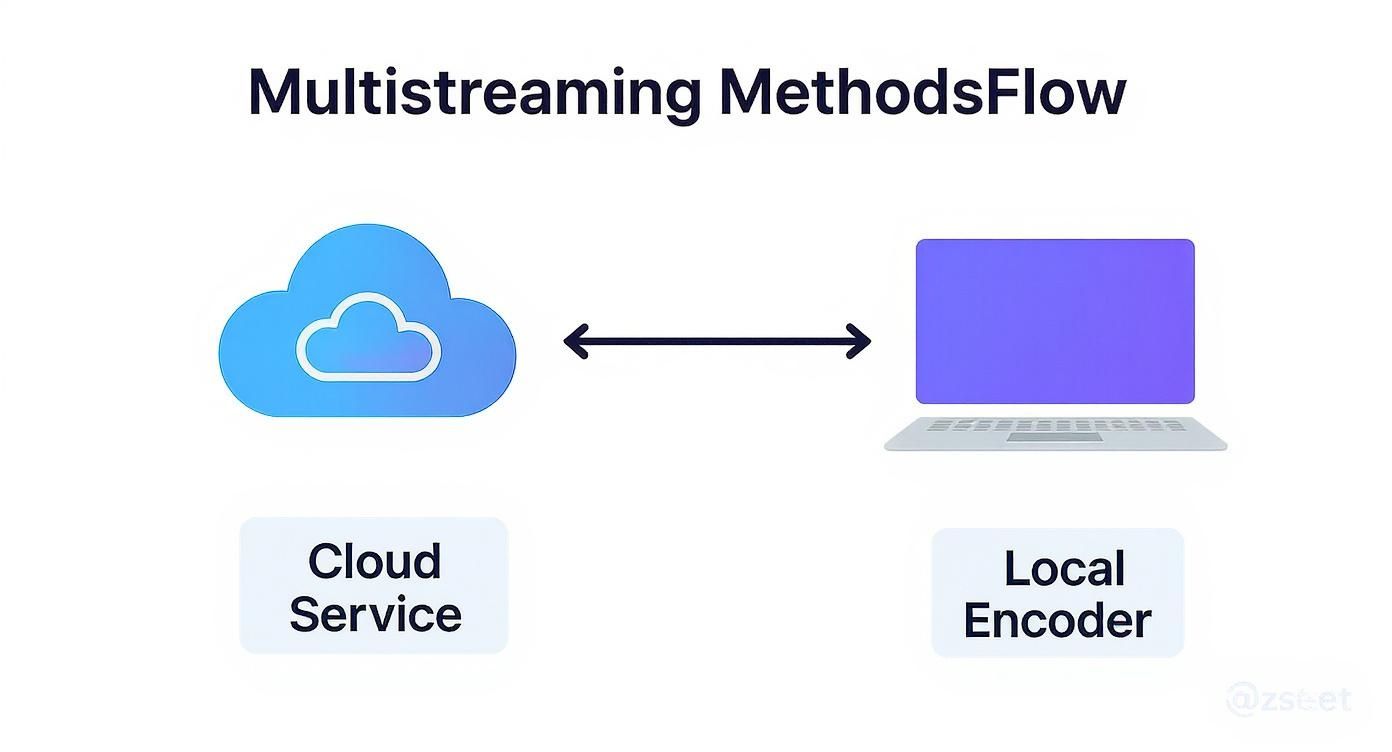
The visual makes it really clear. With a cloud service, your computer only has to push out one high-quality stream. If you do it all locally, your machine is doing the heavy lifting, juggling multiple connections at once. For a 24/7 stream, the cloud path is almost always the safer bet.
Finding Your Stream Keys and RTMP URLs
First things first, you need to go on a little scavenger hunt for your credentials on each platform. They're usually tucked away in the "go live" or creator dashboard sections.
- YouTube: Head into your YouTube Studio and click "Go Live." You'll spot your RTMP URL and stream key under the "Stream settings" tab. One nice thing about YouTube is that your key stays the same unless you manually reset it, which is ideal for a continuous 24/7 setup.
- Twitch: Go to your Creator Dashboard, then find Settings > Stream. Your Primary Stream Key is sitting right there at the top. The RTMP URL is pretty standard, usually something like
rtmp://live.twitch.tv/app/. - Facebook Gaming: Inside the Live Producer, choose the "Streaming Software" option. Your server URL and stream key will be displayed right there.
A quick but important warning: Treat these keys like passwords. Anyone who gets your stream key can broadcast directly to your channel. Don't share them!
Setting Up a Cloud Service
If you're using a cloud multistreaming service, the setup is a breeze. This is a big reason why they are the go-to method for reliable 24/7 live streams.
You’ll typically just connect your accounts—YouTube, Twitch, Facebook, and so on—right from the service's dashboard. Many of these platforms use official API connections, which means you can often just log in to authorize the connection without ever having to manually copy and paste RTMP details.
Once your destinations are linked, the cloud service gives you a single RTMP URL and stream key. You plug that one set of credentials into your streaming software (like OBS), and the service handles the hard work of sending your stream out to all your connected platforms.
Configuring OBS for Direct Multistreaming
For those who prefer to manage everything from their own machine, you'll need a plugin to get OBS Studio to send your stream to multiple places at once. The "Multiple RTMP Outputs" plugin is a fantastic, well-supported option.
Getting it running is pretty straightforward:
- Install the Plugin: First, download and install it from the OBS forums. After you restart OBS, you’ll see a new "Multiple Outputs" panel.
- Add Your Destinations: In that new panel, click "Add new target" for each platform you want to stream to.
- Enter Your Credentials: Give each target a name (e.g., "YouTube"). Then, paste in the RTMP Server URL and the Stream Key you found earlier.
- Start Your Streams: You can set each output to start and stop automatically with your main OBS stream, or you can manage each one individually for more control.
The OBS interface gives you all the tools you need to manage these outgoing streams directly from one place.
Pro Tip: When setting up a 24/7 stream, stability is everything. In your encoder settings, always use a constant bitrate (CBR) and set your keyframe interval to 2 seconds. This is the industry standard and gives you the best compatibility and a smooth, buffer-free experience for your viewers on every platform.
Managing Your Bandwidth for Flawless Streams
When you decide to multistream, your internet connection goes from being just another utility to the absolute backbone of your entire operation. Pushing out several high-quality video feeds at once puts a massive demand on your upload speed. Get it wrong, and you're in for a world of dropped frames, constant buffering, and a frustrated audience.
This is doubly true if you're running a 24/7 live stream, where rock-solid reliability isn't just a nice-to-have—it's everything.
So, how much bandwidth do you actually need? The math is pretty straightforward: take your stream's bitrate and multiply it by the number of platforms you're broadcasting to. For a solid 1080p stream, you might be using a bitrate of 6,000 kbps. If you send that directly to three platforms, you're looking at a sustained 18,000 kbps (18 Mbps) upload requirement. And that’s before adding a safety buffer.
I always recommend adding a 25-30% buffer on top of your calculated need. A speed test might show you have 30 Mbps, but that number is rarely consistent. For a 24/7 broadcast, you need stability, not just peak speed.
Calculating Your True Bandwidth Needs
This simple calculation reveals the single biggest advantage of using a cloud multistreaming service. Instead of sending three separate streams from your computer, you only send one high-quality stream to the cloud service. Their servers then do all the heavy lifting, duplicating and sending it out to all your destinations.
Let's break down what that looks like in a real-world scenario:
- Local OBS Multistream: Sending a 6,000 kbps feed to YouTube, Twitch, and Facebook requires a minimum upload speed of around 24 Mbps (that's 18 Mbps plus our safety buffer). This is a heavy lift for most home connections, making it risky for a 24/7 stream.
- Cloud Service Multistream: Sending that same 6,000 kbps feed to a cloud platform like Restream only requires about 8 Mbps of upload speed.
That difference is a game-changer. It frees up your home internet connection and adds a crucial layer of stability, protecting your stream from local network hiccups. For a deeper dive into finding that sweet spot, our complete guide on the best bitrate for streaming covers all the nuances.
Why Adaptive Bitrate Is Your Best Friend
While your own upload speed is critical, you also have to think about your viewers' download speeds. Not everyone in your audience has a lightning-fast fiber connection capable of handling a pristine 1080p 60fps stream.
This is where adaptive bitrate streaming saves the day.
Thankfully, you don't have to do anything to enable it. Major platforms like YouTube and Twitch automatically take your high-quality source stream and transcode it, creating several lower-quality versions on the fly. This means a viewer on a spotty mobile connection can watch a smooth 480p version, while someone with a great connection gets the full HD experience you intended.
By multistreaming, you're essentially getting the benefit of this powerful feature on every single platform, making your broadcast accessible to the widest possible audience. It’s a built-in tool that just makes your 24/7 stream work better for everyone.
Engaging Multiple Communities at Once
When you're live on several platforms, you're doing more than just broadcasting; you're cultivating multiple communities in parallel. That's a huge opportunity, but it also creates a big question: how on earth do you keep up with everyone without drowning in a sea of browser tabs? The answer is to bring the conversation into one place.
Trying to juggle chats from YouTube, Twitch, and Facebook all at once is a recipe for chaos. This is where chat aggregation tools are an absolute lifesaver. Services like Restream's unified chat or other third-party apps can pull all of your incoming messages into a single, clean feed that you can see right inside your streaming software.
Suddenly, a logistical nightmare turns into a smooth, manageable conversation. You can see every single comment in real-time, no matter where it came from, letting you engage with your entire audience like they're all in the same room.
Making Every Viewer Feel Seen
Just seeing the messages isn't enough; you have to make people feel heard. The real magic happens when you actively acknowledge where your viewers are coming from. When you respond to a comment, take a second to call out the user's name and their platform.
It's simpler than it sounds. Try working these into your flow:
- "Great question coming in from YouTube!"
- "Awesome to see you hanging out over on Twitch today!"
- "Hello to everyone who just joined from our Facebook page!"
This tiny bit of effort goes a long way. It makes each viewer feel like they're a valued part of the stream, not just an afterthought on a secondary platform. You're reinforcing the idea that everyone is at the same event, which builds a much stronger, more connected community.
This approach actually lines up with how people watch content today. Viewers are spread out everywhere. While 76% of people watch online streams daily, a surprising 89% still watch traditional TV, often using multiple services to find what they want. You can dive deeper into these modern streaming trends and stats to see the full picture. As a creator, your superpower is bringing those fragmented audiences together.
When you're running a 24/7 stream, you can't be there all the time. Your community becomes the channel's heartbeat. Giving them the tools to interact with each other, regardless of platform, is the key to keeping the stream alive and engaging.
Automating Moderation for 24/7 Channels
For a channel that’s always on, you can't moderate by yourself. It’s simply not possible. This is where you need to rely on automated tools and trusted community members. The first, most critical step for any continuous stream is setting up good moderation bots.
These bots can be configured to do the heavy lifting for you across every platform, all at once:
- Filter spam and links: Keeps the chat clean from trolls and advertisers.
- Handle custom commands: Lets viewers pull up information or trigger fun on-screen events.
- Time out disruptive users: Helps maintain a positive vibe for everyone else.
By setting up reliable bots and empowering a few trusted community members to be moderators, you create a positive, self-sustaining environment. This ensures your 24/7 live stream remains a welcoming place to be, even when you're offline and getting some much-needed rest.
Answering Your Top Multistreaming Questions
Jumping into multistreaming always brings up a few common questions. It's totally normal. From wondering about platform rules to figuring out the technical side of things, getting these details sorted out is crucial, especially if you're planning a 24/7 broadcast. Let's dig into the things I hear creators ask about most.
One of the biggest hurdles, or at least what used to be a hurdle, was what the platforms themselves would allow. Thankfully, the landscape has changed for the better.
Am I Going to Get in Trouble for Streaming on Twitch and YouTube at the Same Time?
This is probably the number one question, and for good reason. For years, Twitch had some pretty strict rules against it. The good news? That's changed. For most streamers, you are now free to broadcast your Twitch stream to other platforms like YouTube and Facebook simultaneously.
This used to be a big no-no, especially for Affiliates and Partners who were locked into an exclusivity clause. While the general policy is now open, it's still a smart move to give the latest Twitch Affiliate and Partner agreements a quick read before you go live. Things can always change, and it's better to be safe.
Being able to stream to Twitch and YouTube simultaneously is a game-changer for 24/7 channels. You get to engage with the live, highly interactive community on Twitch while your YouTube stream builds a permanent, searchable library of content that works for you long after you're offline.
How Much Upload Speed Do I Actually Need?
The answer to this one completely depends on how you're multistreaming. Your internet requirements are wildly different if you're using a cloud service versus handling it all yourself with a local encoder.
Cloud Service Method: This is the easy route. You just need enough upload speed to send one high-quality stream to the cloud service's server. For a solid 1080p stream, a stable 6-8 Mbps upload speed is a great target. This is why it's my go-to recommendation for 24/7 streams—it's reliable and doesn't crush your home internet.
Local Encoder Method (OBS, etc.): Get ready to do some math. You have to add up the bitrate for every single platform you're streaming to. If you want to send a 6,000 kbps stream to three platforms, you need an upload speed that can consistently handle 18 Mbps (6 + 6 + 6), and you'll want some extra headroom on top of that. If you go this route, a wired ethernet connection isn't just a suggestion; it's a must.
Can I Show Different Alerts for Each Platform?
Absolutely! And you definitely should. It's a fantastic way to make your viewers on each platform feel seen and appreciated.
In a tool like OBS Studio, you can achieve this by setting up different scenes or using specialized plugins designed to pull in alerts from multiple sources. This way, you can have a custom pop-up for a new YouTube subscriber that looks totally different from your Twitch follower alert.
Cloud multistreaming services often make this even easier. Many of them offer built-in alert box tools that automatically combine all your notifications from Twitch, YouTube, and elsewhere into a single browser source. You just pop that one link into OBS, and you get a clean, unified look that still calls out each community by name. This is particularly useful for a 24/7 stream where you want to automate community recognition as much as possible.
Ready to keep your channel live and engaging around the clock without the technical headaches? 24/7 LiveStream provides a cloud-based, set-and-forget solution for running permanent streams from your pre-recorded videos. Start your 24/7 broadcast today.