Looking for a free and easy way to loop a video online? You've got plenty of options that work right in your browser—no downloads needed. Whether you're using a quick YouTube trick or a dedicated web app, you can create a video that plays on repeat in just a few seconds.
Why Looping Videos Hold Attention
Have you ever found yourself completely zoned out, watching the same short clip on Instagram or TikTok over and over? That’s not a bug; it's a feature. A loop without a visible cut creates a rhythm that is easy to keep watching.
This is useful for creators. A five-second clip that loops smoothly may be watched several times before the viewer moves on, which adds to your watch time.
The Psychology Behind the Loop
A well-made loop is a predictable, pleasant pattern. It's the same reason we enjoy watching things like cinemagraphs—those cool still photos with a single moving element—or videos of satisfying factory machines. They show one repeatable moment.
By learning how to loop video online for free, you can tap into this without needing complicated, expensive software. Most online tools have simple interfaces. Just look at this example from Kapwing.

As you can see, you just pick how many times you want it to repeat—from 2x to 10x—or turn it into a GIF. That’s it. This makes quick loops easy.
Loops on Social Media
Loop videos are common on social media because viewers often watch a short loop more than once. Replays add to watch time on the platforms that count them.
Create Instant Video Loops Directly in Your Browser
Sometimes you just need a video to loop right now. Forget downloading software—your web browser is often the fastest tool for the job. These quick methods work when you need a looping background for a website, a quick GIF for social media, or just want to put a funny clip on repeat.
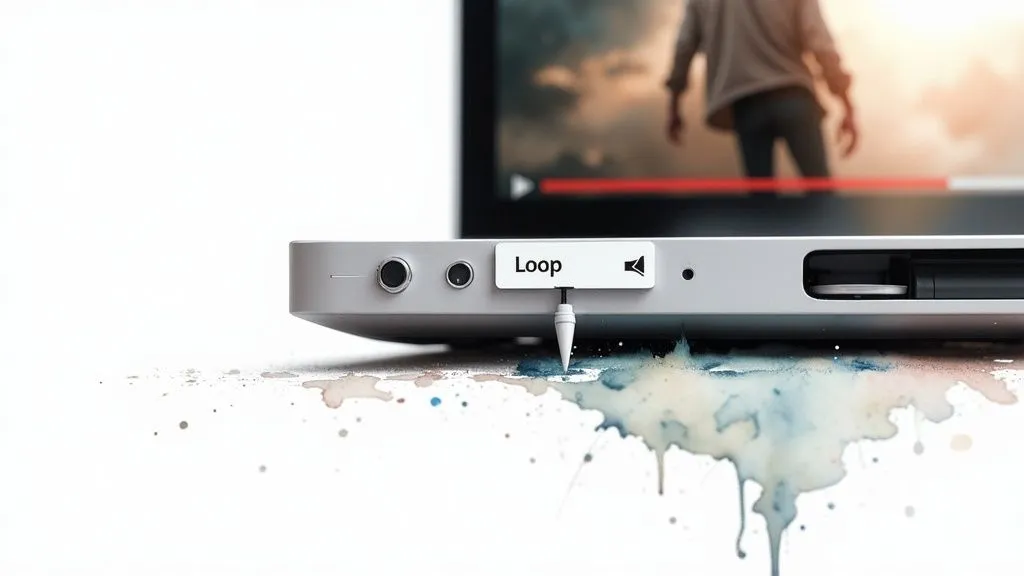
The simplest trick in the book is built right into YouTube. Just find the video you want, right-click on the player, and hit "Loop." That's it. The video will play over and over on your device. While this doesn't give you a new file to download, it’s a useful trick for presentations or just keeping a vibe going in the background.
Using Dedicated Online Video Loopers
When you actually need a looped video file that you can save and share, dedicated browser-based tools are your best friends. These sites are built for one thing: taking your video and making it repeat. The best part? Most let you upload, loop, and download without ever asking you to sign up.
The process is almost always the same, no matter which site you land on. You’ll typically:
- Upload your clip. Most tools let you drag and drop a file from your computer. Some even let you paste a link from places like YouTube or TikTok.
- Choose how many loops. You can usually select a specific number of repetitions, like 2x, 5x, or 10x. Many also have an "infinite" option, which is exactly what you want for making GIFs.
- Download the new file. After a few moments of processing, you'll get a link to download your new looped video, almost always as an MP4.
These tools are incredibly handy, but they're not magic. It's always a good idea to know what you're getting into before you upload.
Key Takeaway: Free online loopers are fast and convenient. But before you get started, always look for gotchas like watermarks, file size limits, or video length restrictions. A quick check can save you from wasting time on a tool that won't work for your project.
What to Expect from Free Browser Tools
"Free" rarely means "no strings attached," and these tools are no exception. Knowing the common trade-offs will help you manage your expectations and pick the right service for your needs.
Here are the usual limitations you'll run into:
- Watermarks: This is the most common catch. The service will place a small logo or text overlay on your final video to promote their brand.
- File Size Caps: You'll likely be limited to uploading smaller files, often under 100MB or 500MB. This can be a deal-breaker if you're working with high-resolution or longer source videos.
- Processing Queues: If the site is busy, you might have to wait a few minutes for your video to be processed. It’s not a long wait, but it's not always instant.
- Output Quality: To save on server space, some tools might compress your video a bit, which can slightly lower its quality. For projects where every pixel matters, it’s worth thinking about how this might affect your video’s bitrate. We cover this in-depth in our guide to understanding bitrate for streaming.
Even with these drawbacks, browser-based tools are still one of the best ways to loop video online free. For most everyday tasks, the convenience is well worth the minor compromises.
Take Creative Control with Free Online Video Editors
When a simple repeat just won't cut it, free online video editors open up a whole new world of creative control. Basic loopers are great for a quick fix, but they usually lack the control you need for a smooth loop. This is where tools like Kapwing or Clipchamp come in, so you can control exactly where the loop restarts.
Think of it this way: a basic looping tool just glues the end of your video to the beginning, which often creates a jarring "jump" when it resets. A real video editor lets you get surgical. You can zoom in on the timeline and trim your clip frame by frame to find a transition that is almost invisible.

Finding the Right Loop Point
The secret to a great loop is making the end flow right back into the beginning without anyone noticing. It’s all about finding the right "loop point"—a moment of visual continuity that makes the repetition feel natural, not forced.
For instance, imagine a video of a steaming mug of coffee. A good loop might start just as a wisp of steam begins to rise and end just as it fades away, right before the next one appears. When you nail it, the viewer can't tell where the clip starts or stops.
To get this effect, you'll need to:
- Trim with Precision: Get comfortable with the editor's timeline. Shave off individual frames from the start and end of your clip until the action feels continuous.
- Focus on Repetitive Motion: Look for natural cycles in your footage. Things like a pendulum swinging, waves crashing on a shore, or a person jogging on a treadmill are all good candidates for smooth loops.
- Test and Refine Constantly: Play your trimmed clip on a loop inside the editor. Does it jump? Is the cut obvious? Don't be afraid to adjust it by a few frames here and there until that transition is smooth.
This hands-on approach lets you create clean loops for hero sections on websites or eye-catching social media posts.
How to Handle Audio for a Smooth Loop
Nothing ruins a great visual loop faster than a jarring audio cut. An abrupt stop or a sudden restart of music is a dead giveaway that the video is on a short repeat. Luckily, free editors give you a few solid ways to solve this.
You have three main options:
- Mute the Audio: This is the simplest and often the best solution. If the sound isn't critical to the video's impact, just remove it entirely for a clean, silent loop.
- Add a Fade: A subtle audio fade-out at the very end of the clip and a fade-in at the beginning can help soften the transition, making the cut much less obvious.
- Use Looping Audio: The most professional approach is to find a short, ambient soundscape or a piece of royalty-free music that was specifically designed to loop without a cut.
Your audio strategy really depends on your goal. For a quick GIF-style clip on social media, muting the audio is usually the way to go. For an atmospheric background on a website, a carefully selected looping audio track is far more effective.
Optimizing Your Final Looped Video
Once your visual and audio are ready, the last step is to export the video. Free online editors give you some crucial settings that directly impact how your video performs online. Pay close attention to the output format, as it affects both file size and browser compatibility.
You might need to explore different codecs to get the best performance on the web. For a deeper dive on this, our guide on how to convert MP4 to H.264 is a great resource.
Knowing how to loop video online free and export it with the right settings makes your loop work on any platform you put it on.
Best Practices for Smooth Loops
Making a video loop is one thing, but making it look good is another game entirely. It's the small details—the file format, the audio, how big the file is—that make the difference between a jarring, amateur-looking loop and a polished one that pulls people in.
Use these final checks to make sure your looped video works wherever you put it.
The first big choice you'll have to make is whether to use an MP4 or a GIF. They both repeat, sure, but they're built for completely different things and have major trade-offs in performance.
Choosing Your Loop Video Format
The format you pick has a real impact on how fast your page loads, how crisp the video looks, and the overall vibe it gives off. An MP4 is a true video file, so you get smooth, high-quality visuals with millions of colors. The trade-off? A bigger file size.
A GIF, on the other hand, is an old-school image format that’s stuck with just 256 colors. This often makes it look grainy or pixelated, but the files are usually much smaller.
Here's a practical comparison to help you decide which one is right for your project.
Choosing Your Loop Video Format
| Format | Key Advantages | Key Disadvantages | Best Use Case |
|---|---|---|---|
| MP4 | High-quality video, smooth playback, and supports audio. | Larger file size can slow down web pages. | Ideal for website hero backgrounds or high-impact social media posts where visual quality matters most. |
| GIF | Smaller file size, universally supported, and autoplays easily. | Limited color palette, no audio, and can look low-quality. | Good for email marketing, simple animations, or as a quick, low-impact visual on a blog post. |
Honestly, for most things you’ll do on the web today, a well-compressed MP4 is the way to go. But if you're in a situation where every single kilobyte counts, a GIF can still be a solid choice.
Fine-Tuning Audio and Copyright
Audio can completely ruin a good loop. A hard cut or a sudden restart makes the repeat obvious. For most loops, the best move is to just mute the audio entirely.
If the sound is absolutely necessary, find some ambient audio that’s already designed to loop, or add a gentle fade-in and fade-out at the beginning and end of your clip. It really helps smooth out that transition.
Don't forget that copyright law covers both video and audio. Make sure you have the rights to use everything in your loop. Stick to your own footage or grab assets from royalty-free libraries to stay out of trouble.
Knowing When to Move Beyond Simple Looping Tools
Learning to loop a video online for free is useful for quick projects. Those browser-based tools work well when you need to whip up a GIF for a social media post or add a subtle, moving background to a webpage. But let's be real—every creator eventually hits a point where these simple solutions just can't keep up.
Knowing the limits of free tools is key. It helps you spot the exact moment you need to upgrade your setup.
Simple loopers are built to do one thing: repeat a clip and spit out a new file. They aren't built for projects that need continuous playback for hours or days. If you want an always-on presence, you'll outgrow a basic online tool quickly.
Signs You've Outgrown Basic Loopers
Think about the bigger picture. Are you trying to run digital signage in a shop that needs to be on all day? Or maybe you're setting up an ambient video for a live event where a crash would be a disaster. These scenarios demand a level of control and stability that you just won't get from a free looping website.
You'll know it's time to find a more powerful solution when you start needing things like:
- Always-on playback: For a non-stop lofi music stream on YouTube, for example, you can't rely on your personal computer and internet connection. You need a system that runs on its own.
- Scheduled Content: What if you want to play different looped videos at specific times of the day? A basic looper has no concept of scheduling.
- Overlays: If you want logos or lower-thirds on top of your loop, you need a video editor or streaming software with overlay support.
- Stability: A free online looper can crash, get stuck in a queue, or just time out. A 24/7 stream needs a service that runs without you and reconnects on its own if the connection drops.
This simple decision tree can help you figure out when a basic format is fine versus when you need something more substantial.
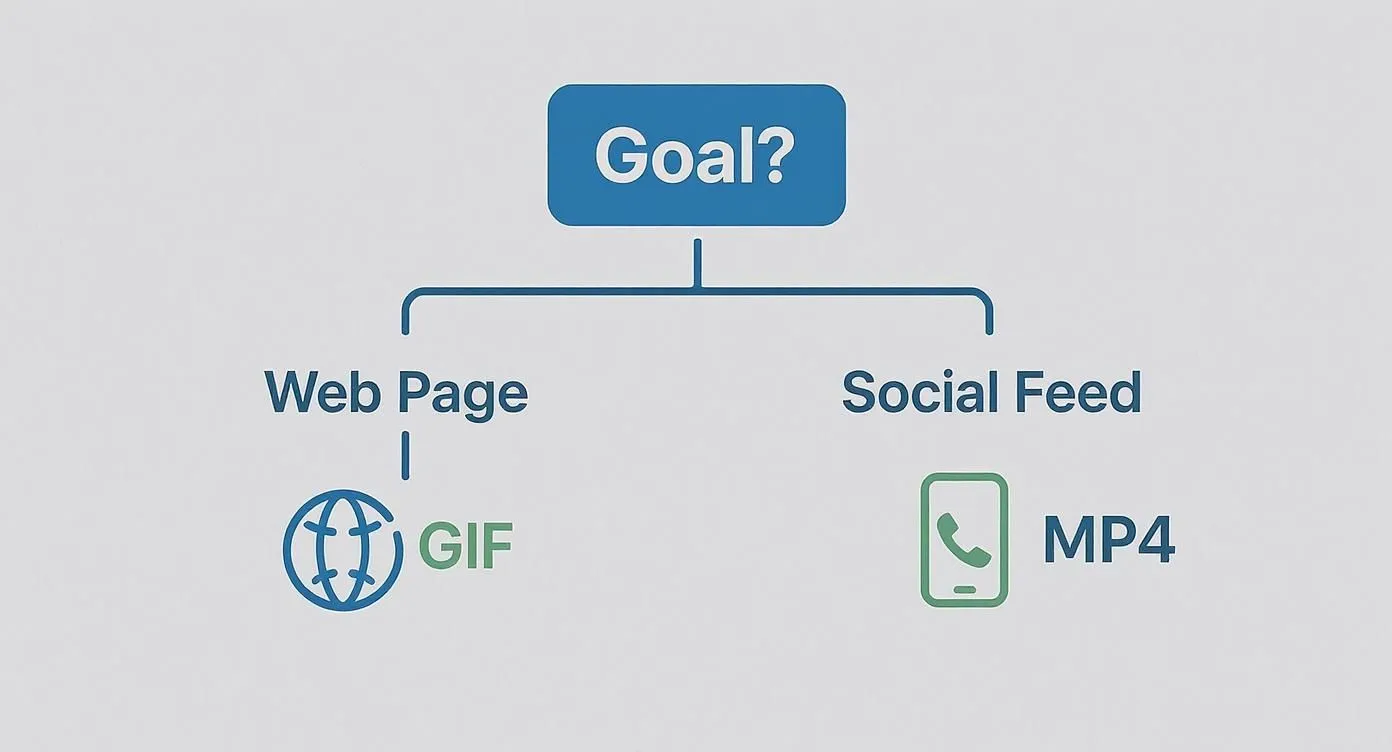
As you can see, where your video will live dictates the best format. It’s a good reminder that there's no one-size-fits-all solution.
Stepping Up to Continuous Streaming Platforms
Once your ambitions get bigger, you're not just looping a video anymore—you're getting into continuous live streaming. This is where services like 247 LiveStream come in. Instead of just creating a repeating file, these services broadcast your pre-recorded content as a live feed, 24/7.
A looped MP4 on a website plays only for people who visit that page. A 24/7 live stream puts the same content on an always-on live channel on platforms like YouTube.
With 247 LiveStream, you upload your videos, set the playlist order or shuffle, and the playlist loops. The stream runs from cloud servers, so your computer can be off, and it reconnects automatically if the connection to YouTube drops. It streams at 1080p 30 FPS for $16 per month, or $14 per month billed yearly.
If you’re serious about building a continuous video presence, this is the logical next step.
Got Questions About Looping Videos? Let's Clear Things Up.
When you're trying to loop video online for free, it’s easy to run into a few frustrating snags. I've seen these same issues pop up time and again, so let's walk through the most common questions and get you a fix that actually works.
A classic one I hear all the time is, "Why does my looped video have a black flash at the end?" This is almost always caused by a few rogue, empty frames at the very end of your original clip. Even a tiny sliver of blank space creates a jarring flicker when the video restarts.
The solution is simple. Pop your video into a free online editor, zoom way in on the timeline, and trim the clip frame-by-frame right at the end of the action. Shaving off those last few empty frames makes all the difference and gives you a clean loop.
How Can I Make a Loop Smaller for a Website?
File size is a huge deal, especially when you're adding a video to a website. A bloated video file can kill your page speed. So, how do you shrink it down without turning it into a pixelated mess?
You've got a few options here, and I usually recommend a combination of all three:
- Drop the Resolution: Does that background loop really need to be in 4K? Probably not. For most websites, 720p is plenty sharp and will slash your file size.
- Tweak the Quality Settings: When you export, find the "quality" or "bitrate" slider. Nudging it down a little can cut the file size a lot with very little noticeable loss in visual quality.
- Keep it Short: A snappy 3-second loop is always going to be smaller than a 10-second one. Find the shortest possible moment that still captures the vibe you're going for and trim it down.
Remember, the goal for web videos is balancing quality and performance. A slightly less crisp video that loads in a flash is always better than a sharp 4K video that sends visitors bouncing off your site.
Troubleshooting Common Looping Errors
Then there's the inevitable, "Why won't my video loop on my website?" This one almost always comes down to the embed code, not the video file itself.
If you’re using an MP4 file directly with HTML, you need to check your <video> tag. You have to explicitly tell the browser to loop, autoplay, and mute the video. Browsers are smart—they won't autoplay a video with sound because it’s annoying for users. Your embed code needs to look something like this: <video autoplay loop muted src="your-video.mp4"></video>. Adding those three attributes usually solves the problem.
If you want your loop to run as a 24/7 live stream, quick-fix tools won't do it. A cloud service like 247 LiveStream streams your videos around the clock while your computer is off. Learn more about building a 24/7 channel.