
If you're serious about running a live stream 24/7, your setup is everything. We're not talking about a simple webcam and a gaming PC here. This is about building a dedicated, bulletproof system that can run nonstop without a single hiccup. Think of it as building a broadcast machine for a marathon, not a sprint. This guide is your blueprint for creating that professional, always-on stream that defines a successful 24/7 channel.
Building Your Rock-Solid Streaming Foundation
Let's get past the beginner advice. A continuous, around-the-clock broadcast demands a rig built for one thing: absolute stability. Every single component you choose has to be selected with long-term, uninterrupted performance as the top priority.
This obsession with reliability isn't just for bragging rights. The video streaming industry is exploding—it was valued at USD 129.26 billion in 2024 and is on track to hit USD 416.8 billion by 2030. A huge chunk of that, 62.5% to be exact, is live content. This explosive growth means a professional setup is your ticket to standing out from the noise, especially in the growing niche of 24/7 live streams. You can dive deeper into these video streaming market trends to see just how critical this is.
The Dedicated Machine Philosophy
I can't stress this enough: for a 24/7 stream, you need a dedicated machine. Trying to run it on your everyday computer is just asking for trouble. Unexpected software updates, resource-hungry background apps, or even an accidental reboot can bring your entire broadcast crashing down.
A purpose-built machine, whether it's a physical server tucked away in a closet or a powerful cloud instance, completely removes those variables. Think of this machine as the heart of your channel. Its only job is to encode and push your 24/7 live stream out, flawlessly, day in and day out.
For those building their own rig, here’s a quick rundown of what to prioritize for a system designed for endurance.
Essential Hardware for a 24/7 Streaming Rig
This table breaks down the components I'd recommend for anyone building a machine specifically for constant, high-uptime streaming. This hardware is key to a reliable 24/7 live streaming setup.
| Component | Minimum Recommendation | Pro-Level Choice | Why It Matters for 24/7 |
|---|---|---|---|
| CPU | Intel Core i7 / AMD Ryzen 7 | Intel Xeon / AMD Threadripper | Server-grade CPUs are built for continuous load and have features like ECC memory support to prevent crashes. |
| GPU | NVIDIA GeForce RTX 3060 | NVIDIA Quadro RTX A4000 | A dedicated GPU with a robust NVENC encoder offloads work from the CPU, ensuring smooth video processing without bogging down the system. |
| RAM | 32 GB DDR4 | 64 GB+ DDR4/DDR5 ECC | More RAM allows for complex scenes and sources. ECC (Error-Correcting Code) RAM is crucial for preventing data corruption during long uptimes. |
| Cooling | High-Quality Air Cooler | AIO Liquid Cooler / Custom Loop | Overheating is the enemy of stability. A robust cooling solution keeps temperatures in check during the marathon of 24/7 operation. |
| Power Supply | 750W Gold-Rated PSU | 1000W+ Platinum-Rated PSU | A high-efficiency, reliable power supply unit ensures stable power delivery and is less likely to fail under constant strain. |
Choosing pro-level components isn't about overkill; it's about investing in stability. Every piece is designed to handle relentless operation, which is exactly what a 24/7 stream demands.
Your Internet Connection: The Unsung Hero
Your internet connection is the lifeline of your stream. Everyone gets excited about download speeds, but for us, upload speed is what truly matters. It's the pipeline that carries your broadcast to the world. Always, always use a wired Ethernet connection. Wi-Fi is just too unreliable for a mission-critical 24/7 stream.
A common mistake is getting fixated on raw speed. For 24/7 streaming, a stable, consistent connection is far more valuable than a blazing-fast but jittery one. Even tiny network hiccups can cause dropped frames or kill your stream completely.
Before you even think about going live, you need to know if your connection can handle the load. To get a handle on this, check out our guide on what is a good upload speed for streaming. Understanding this ensures you can deliver that seamless, buffer-free experience your viewers expect from a 24/7 channel.
Setting Up OBS Studio for a Marathon Stream
Your software is the command center for your entire 24/7 operation, and OBS Studio is the undisputed workhorse of the industry. But here's the thing: the default settings that are perfect for a two-hour gaming session just won't cut it for a continuous, around-the-clock broadcast. For a marathon stream, your configuration needs to be laser-focused on one thing: rock-solid stability.
This means going beyond the basics and digging into the specific settings that prevent crashes, freezes, and performance issues over long periods. Think of a stable OBS setup as the reliable engine that keeps your 24/7 channel online and your viewers happy.
This is your main control panel. Getting comfortable with this layout is the first real step toward building a broadcast that can run for days, not just hours.
Building Scenes for Looping Content
Most 24/7 streams are built around a looping playlist of pre-recorded videos. It seems simple enough, but how you add these files to OBS can make or break your stream's long-term health. The standard "Media Source" is fine for short clips, but I've seen it develop memory leaks or start to stutter after days of non-stop playback.
A much more reliable approach is to use the VLC Video Source plugin. You create your playlist right inside the VLC media player and then add that entire playlist as a single source in OBS. This method hands off a lot of the heavy lifting to VLC's powerful playback engine, which takes a significant load off OBS itself.
Whichever method you choose, double-check these settings:
- Loop: This is the big one. Make sure your video source or playlist is set to loop forever.
- Restart playback when source becomes active: This setting will start your playlist from the beginning if you switch away from the scene and then back. Decide if that's what you want.
- Close file when inactive: For a 24/7 stream, I almost always recommend disabling this. Keeping the file open uses a little more memory, but it prevents potential hiccups or delays when the source becomes active again.
Fine-Tuning Your Encoder and Bitrate
Your encoder settings are what package your video into a data stream that platforms like YouTube can understand. To get the best performance and quality for a 24/7 live stream, it really helps to start by understanding video codecs and how they work.
If you have a dedicated streaming PC with a modern NVIDIA graphics card, the NVENC (H.264) encoder is your best friend. It uses a special chip on the GPU to do the encoding, leaving your main CPU free to handle everything else. This is key to preventing system slowdowns.
The most common point of failure I see in long-term streams isn't a sudden crash—it's the slow, creeping decline in quality caused by a bad bitrate setting. If your connection fluctuates, YouTube's servers will struggle to keep up, and your viewers will be stuck watching a buffering wheel.
Setting a Constant Bitrate (CBR) is absolutely mandatory for a 24/7 stream. It sends a predictable, steady flow of data that streaming platforms love. For a 1080p 30fps stream, a bitrate between 4,500 and 6,000 Kbps is a great place to start. If you want to dive deeper, our guide on choosing the perfect bitrate for streaming will help you dial in that number perfectly. Getting this right is how you build a live streaming setup that is both stable and looks fantastic.
Automating Your Stream for Hands-Off Management
The holy grail of any 24/7 live stream is to get it to a true "set it and forget it" state. This isn't about being lazy; it's about building a tough, self-sufficient broadcast that stays online no matter what. Smart automation is what gets you there, turning your stream into an operation that just runs itself around the clock.
This push towards automated, continuous content is happening in a market that's absolutely exploding. The global live streaming industry was valued at around USD 106.5 billion in 2025, and it's expected to rocket to an incredible USD 725.5 billion by 2034. This boom is powered by better cloud technology and viewers who want content available whenever they tune in. A reliable, automated 24/7 live streaming setup is your ticket to being a serious player.
Creating a Seamless Looping Playlist
The backbone of most 24/7 streams is a playlist of pre-recorded videos. The real trick is making the loop completely seamless, without any awkward pauses or jarring cuts that scream "amateur hour" and make people leave.
Your streaming software, like OBS Studio, is where this magic happens. You can arrange your video files in a specific order within a scene to create a continuous flow. I've found that using the "VLC Video Source" plugin for OBS is a game-changer; building a playlist in VLC and letting it loop is often far more stable for long-term playback than the native Media Source. If you need more ideas for managing your content, our guide on how to loop video online for free has some great tips.
This diagram breaks down how your content gets from a folder on your computer to a live, automated broadcast.
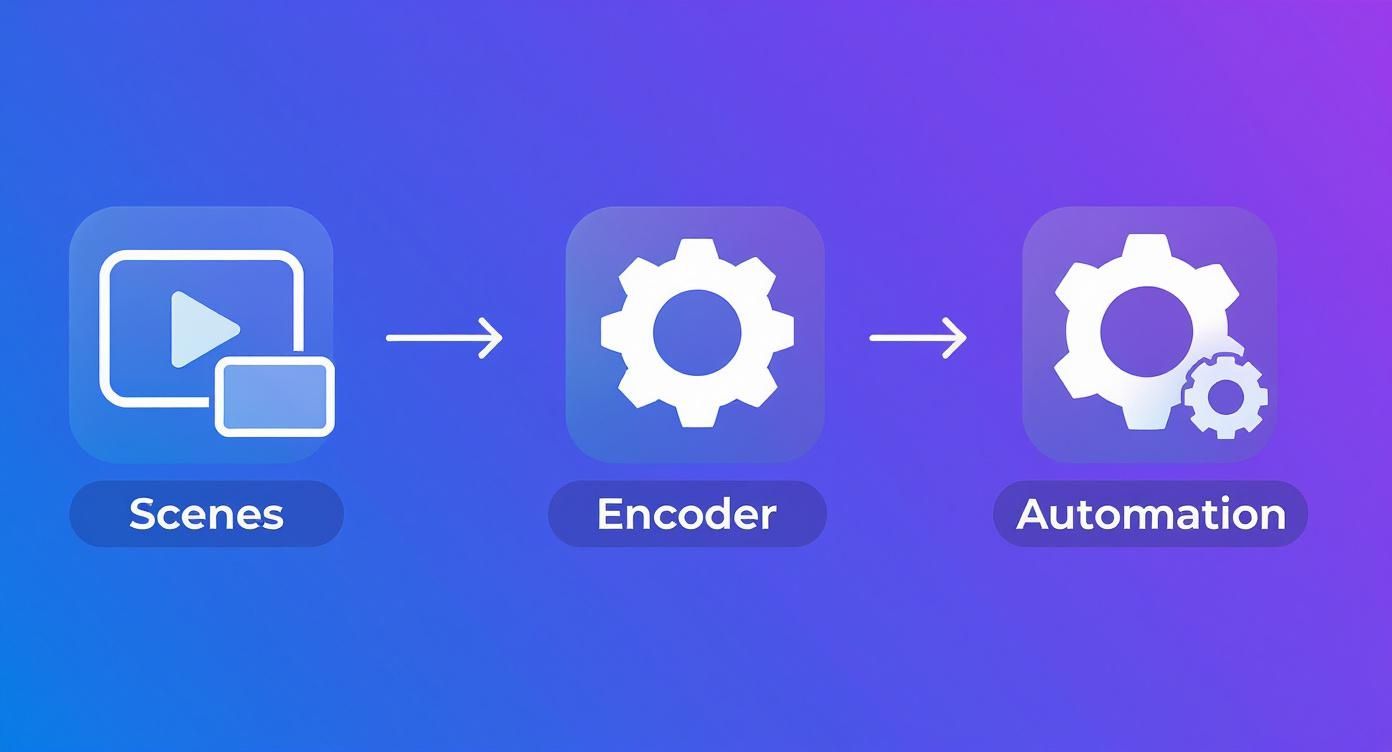
As you can see, automation is that final, critical gear that makes the scenes and the encoder work in perfect harmony without you needing to be there.
Building in Redundancy and Auto-Recovery
Now for the most important skill for any 24/7 streamer: building for failure. No matter how perfect your setup is, things will go wrong. A power flicker, an internet drop, a software crash—it’s going to happen. The difference between a pro and an amateur is having a plan for the stream to fix itself instantly.
This is where scripts and third-party tools are your best friends. You can set up simple scripts that constantly check if your OBS process is running or if the stream is live. If the script detects a problem, it can jump into action.
- Restart the Software: A simple command can kill a frozen OBS process and restart it fresh.
- Reboot the Machine: For a more serious system-wide freeze, a watchdog script can trigger a full reboot of the computer.
- Send an Alert: You should always know what's happening. Configure the script to send a message to your phone or email the second your stream goes down.
Don't think of crashes as a possibility; think of them as an inevitability. Your automation strategy is your insurance policy. A 24/7 live stream that can fix itself in minutes will keep way more viewers than one that stays dark for hours until you get home to fix it.
And if you’re looking to expand your reach, you can learn how to stream on multiple platforms seamlessly. This approach can be tied right into your recovery plan, making sure all your destinations come back online automatically. This is the kind of preparation that elevates a hobby into a serious broadcasting operation.
Crafting an Engaging Viewer Experience

Alright, your 24/7 stream is running smoothly and automatically. That’s a huge win. But now comes the real challenge: making it something people actually want to watch for hours. A static video, no matter how beautiful, will eventually just become background noise.
This is where we move beyond the technical setup and start thinking like a broadcaster. The goal is to create a dynamic, TV-like experience that keeps people hooked and encourages those longer watch times. A polished stream doesn't just look better; it signals to viewers that your content is high-quality and worth their time.
Dynamic Overlays and Information Tickers
One of the quickest ways to bring a 24/7 stream to life is with simple graphical elements, or overlays. These are the details that instantly make a broadcast look more professional and informative. Don't just slap a logo in the corner and call it a day.
Think about adding elements that give your viewers value or something interesting to look at.
- Branded Logos: A clean, semi-transparent logo in a corner is a must for reinforcing your brand, but make sure it’s not too distracting.
- Information Tickers: That slow-scrolling text at the bottom is perfect for sharing social media handles, announcing upcoming videos, or shouting out community members.
- Live Data Widgets: You can integrate tools that display real-time information. Think about showing your current subscriber count, the latest channel member, or even a live chat feed right on the screen.
These small additions prevent the screen from feeling dead and give viewers new information to absorb as they watch. For a 24/7 stream, these details are absolutely critical for keeping people engaged over long periods.
Creating a Professional Broadcast Feel
To really hold an audience for hours on end, you have to think like a television producer. How can you add layers to the experience that make it more than just a video playing on repeat?
A great 24/7 stream is an environment, not just a video. The goal is to create a space where people want to hang out. Dynamic elements, good music, and community interaction are what turn a passive viewer into an active subscriber.
A powerful technique I've used is creating different "scenes" in my streaming software. For instance, you have your main video loop scene, but you can also create a "Starting Soon" scene with a countdown timer or a "Be Right Back" scene with a different graphic and some chill music. This variety breaks up the monotony and gives viewers clear signals about what’s happening.
By adding these visual enhancements, your live streaming setup becomes more than a technical success—it becomes a destination. This professional approach is key for viewer retention and presents a much stronger image to potential subscribers and sponsors, which is exactly what you need to grow a 24/7 channel.
Keeping Your Stream Healthy and Fixing Problems
Sooner or later, even the best-laid streaming plans will go sideways. When you're running a 24/7 broadcast, the goal isn't to prevent every single problem—that’s impossible. The real skill is in spotting trouble and fixing it fast. Knowing what to look for is half the battle, and it's what separates a professional 24/7 stream from one that's constantly offline.
This isn't just about technical pride; it's about audience retention. The sheer amount of live content out there is staggering. Just in the third quarter of 2025, people watched a mind-boggling 29.45 billion hours of live streams. And while YouTube Live saw a tiny dip, it still held a massive piece of the pie with over 13.25 billion watch hours. You can get a deeper look at these figures in the global livestreaming trends report on StreamsCharts.com. These numbers prove one thing: your viewers have plenty of other places to go. A stable 24/7 stream is non-negotiable.
Your Dashboard: The First Line of Defense
Think of your YouTube Studio dashboard as your command center. It throws a lot of data at you, but for keeping a 24/7 stream alive, you only need to obsess over a couple of things.
Keep your eyes glued to these two indicators:
- Stream Health: This is your big, obvious warning light. YouTube will tell you if it's "Excellent," "Good," "Fair," or "Poor." If you see anything besides "Excellent," it’s time to start digging.
- Bitrate: This should look like a nice, flat line that matches what you set in OBS. If it starts looking like a mountain range with wild spikes and dips, you’ve likely got an issue with your internet connection or the encoder itself.
Honestly, these two metrics are like a heartbeat monitor for your broadcast. If the stream health suddenly drops, the first place I always look is the bitrate graph to see what it's telling me.
The Headaches of Marathon Streaming
Running a stream for days or weeks on end introduces a whole new class of frustrating problems. These aren't the quick glitches you might see in a two-hour stream; these are issues that creep in over time and can take your whole operation down if you ignore them.
A 24/7 stream is a living thing. And like any system under constant pressure, parts of it will start to fray. The most common culprits are the slow-burn problems, like memory leaks or desync issues that gradually get worse and worse.
Let's walk through the usual suspects and how to handle them.
A Troubleshooter's Checklist for 24/7 Streams
Audio Drifting Out of Sync: Have you ever checked your stream after 12 hours and noticed the audio is just a fraction of a second off from the video? This is a classic long-haul problem. It’s often caused by mixing video files that have different audio sample rates (like some at 44.1 kHz and others at 48 kHz).
- The Fix: Make it a rule to process all your video files before you add them to your playlist. Use a tool to batch-convert every file so they all have a consistent audio sample rate. I always stick to 48 kHz.
OBS is Eating Your RAM: Does it feel like OBS is getting hungrier for memory the longer your stream runs? That's a memory leak, my friend. It’s usually caused by a buggy plugin or an old, misbehaving source. Eventually, it will eat all your available RAM and crash.
- The Fix: First, make sure OBS and every single plugin you use are updated to the latest version. If you’re still seeing the memory creep up, try swapping out the standard Media Source for the VLC Video Source. In my experience, it handles long, looping playlists much more efficiently.
Sudden, Unexplained Frame Drops: If your stream looks smooth as butter one minute and a choppy mess the next, your encoder is probably struggling.
- The Fix: Pop open the stats dock in OBS by going to
View > Docks > Stats. If you see a bright red warning that says "Encoding Overloaded!", your computer's GPU or CPU just can't keep up. The immediate solution is to back off a little—try lowering your output resolution (say, from 1080p to 720p) or dropping your bitrate a bit to ease the load.
- The Fix: Pop open the stats dock in OBS by going to
Frequently Asked Questions
Got questions about building a 24/7 live stream that actually stays live? You're not alone. Here are answers to some of the most common hurdles people face when trying to set up an always-on broadcast.
Can I Really Run a 24/7 Stream From My Home PC?
Technically, yes, but it comes with some serious strings attached. A decent modern desktop can handle a 1080p stream, especially if it has a dedicated NVIDIA graphics card (for that sweet NVENC encoder) and at least 16GB of RAM. The real challenge isn't power, it's stability.
Think of it like a marathon. Your PC needs top-notch cooling and a high-quality power supply to survive the constant load. Most importantly, it needs to be a one-trick pony—this machine should be used exclusively for streaming and nothing else. That's why I strongly advise against using a laptop; they just aren't built to dissipate that kind of heat for days on end. For true peace of mind, the pros use dedicated server hardware or cloud solutions built for 100% uptime.
How Much Upload Speed Do I Actually Need?
For an always-on stream, consistency trumps raw speed every single time. A good rule of thumb is to have a stable upload speed of at least 10-12 Mbps for a solid 1080p stream. This gives you a crucial buffer to absorb the small, random dips in your internet connection without dropping frames.
And let's be clear: a wired Ethernet connection is non-negotiable. Wi-Fi is fantastic for browsing, but it's just too unpredictable for a mission-critical, around-the-clock broadcast. Before you even think about going live, run some long-form network stability tests to make sure your connection can handle the sustained pressure.
The real killer of a 24/7 stream isn't a slow connection, but an unstable one. Even brief moments of packet loss or jitter can cause your stream to buffer for viewers or disconnect entirely, ruining the always-on experience.
What’s the Best Way to Loop Videos in OBS?
When you're running a loop for days or weeks, the standard "Media Source" in OBS Studio can sometimes get a little flaky. Many experienced streamers, myself included, have found the "VLC Video Source" plugin to be a much more reliable workhorse for long-term looping.
The trick is to create your playlist directly within the VLC application first. Then, you simply add that pre-made playlist as a single VLC source in your OBS scene and set it to loop. I've found this method is far less likely to cause stuttering, memory leaks, or crashes over long stretches—common pain points with the native media source.
How Do I Stop Audio From Drifting Out of Sync?
Ah, the dreaded audio desync. It's one of the most common and frustrating problems in any marathon stream. Nine times out of ten, the culprit is a mismatch in the audio sample rates across your different video files.
Before you add anything to your playlist, make sure every single video file shares the same audio sample rate, like 48 kHz. You can use a simple video editor to batch-convert your media to get everything on the same page. As an extra layer of protection in OBS, you can also try navigating to your audio source's advanced properties and enabling "Use Device Timestamps." This can sometimes help OBS keep things locked together over a very long broadcast.
Ready to build a truly hands-off, professional 24/7 stream without the hardware headaches? 24/7 LiveStream provides a cloud-based solution that keeps your channel live around the clock with auto-recovery and 100% uptime. Stop worrying about crashes and start growing your channel at https://247livestream.live.