Figuring out how to schedule YouTube videos is more than just a time-saver; it’s a core part of any serious growth strategy. At its simplest, it just means you upload your video, head to the "Visibility" settings in YouTube Studio, and pick a future date and time for it to go live. But that simple action is what lets you build a consistent publishing routine—the kind that keeps viewers coming back for more, whether for a standard video or the launch of a new 24/7 live stream.
Why Scheduling YouTube Content Is a Growth Strategy
Let's be real: scheduling your YouTube videos is a total game-changer. It’s the difference between frantically uploading whenever you finish an edit and strategically managing your channel like a pro. Instead of being reactive, you build a content pipeline that your audience can count on.
This kind of consistency sends a powerful signal, not just to your viewers but to the YouTube algorithm as well. When your subscribers know a new video drops every Tuesday at 2 PM, they start to build it into their week. This planned approach works wonders for all kinds of content:
- Standard Video Uploads: Perfect for keeping your weekly vlog or tutorial series on track.
- YouTube Premieres: Lets you build hype and create a live, shared viewing experience.
- Continuous 24/7 Live Streams: Helps you build an "always-on" channel that can capture viewers in any time zone.
Consistency Over Sheer Volume
So many creators fall into the trap of thinking more is always better. But trust me, it’s the consistency of your schedule that really moves the needle, not just the number of uploads. Trying to churn out extra videos often leads to burnout without actually boosting your views.
In fact, a 2025 experiment highlighted that channels sticking to a steady, two-videos-per-week schedule actually saw better growth and retention than those scrambling to post three times a week. The YouTube algorithm loves predictability. We've seen that consistent channels can get up to 20% better algorithmic promotion. You can find more data on this over at Social Video Plaza.
When you schedule your content ahead of time, you're not just organizing your uploads. You're buying back your own time—time you can now spend on creating amazing videos and actually talking to your community. It shifts your channel from a hobby to a reliable brand.
This strategic mindset also gives you the space to get more subscribers on YouTube by focusing on quality. To really level up, think about how your YouTube schedule fits into a larger social media content calendar. That way, you can line up your video launch with posts on Instagram, Twitter, or TikTok, creating a unified promotional blast for every piece of content you release.
Scheduling Videos in YouTube Studio
This is where the magic happens. YouTube Studio is your mission control, and getting comfortable with its scheduling features is one of the most powerful things you can do for your channel's consistency. Whether you're on your desktop or running errands with your phone, the process is surprisingly simple.
Think about it: you just spent a weekend batch-recording an entire month's worth of videos. Instead of letting them collect digital dust on a hard drive, you can get them uploaded and scheduled in one session. This builds a reliable content pipeline that keeps your channel active, even when you decide to take a week off. This is a crucial workflow for creators who also manage a continuous 24/7 live stream and need to keep their video library fresh.
The Desktop Scheduling Workflow
For the full suite of options, nothing beats the desktop version of YouTube Studio. It lays everything out, letting you fine-tune every detail before your video ever sees the light of day.
Start by heading to your YouTube Studio dashboard and finding that big "Create" button in the top-right corner. It’s your starting point.
Upload Your Video: Give "Create" a click, then select "Upload videos." You can drag and drop your video file right into the window or browse your computer to find it. The best part? You can start filling out the video’s info while it’s still uploading.
Fill in the Details: This is your chance to add a compelling title, a detailed description, and relevant tags. Don't forget to add it to a playlist! This is a great habit for organizing your content, especially if you're building up a library you might later use for a 24/7 looped stream.
Navigate to Visibility: Once you've moved past the "Video elements" (like adding end screens) and the "Checks" tab (where YouTube scans for copyright issues), you'll hit the "Visibility" page. This is the final step and where you tell YouTube when to publish.
Instead of making the video public right away, you'll see an option labeled "Schedule." This is what you want. Clicking it brings up a handy calendar and time selection tool.
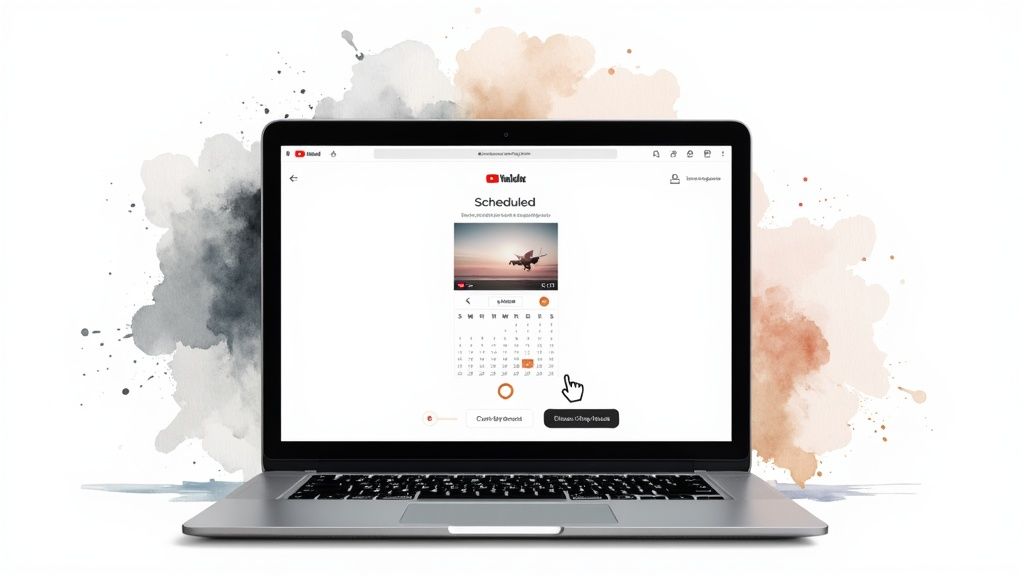
The interface is built for precision. You can pick the exact date and minute your video goes live.
Choosing a specific date and time means you control the launch. You're not just throwing a video out there; you're strategically releasing it when your audience is most active. This maximizes initial views and sends great signals to the YouTube algorithm right from the start.
Just pick your date, set the time (double-check the time zone!), and hit the blue "Schedule" button. Done. Your video is now in the queue, ready to go public automatically at the exact moment you chose.
Scheduling from Your Mobile Device
Inspiration (or the need to upload) doesn't always strike when you're at your desk. Thankfully, the YouTube Studio mobile app lets you manage your schedule on the go. The process mirrors the desktop experience but is optimized for a smaller screen.
It’s just as easy:
- Open the main YouTube app and tap the “+” (Create) icon at the bottom of the screen.
- Choose "Upload a video" and select the file from your phone's gallery.
- Add your title, description, and other details, then tap "Next."
- On the next screen, you’ll find the "Visibility" setting. Tap it and select "Schedule."
- Pick your date and time, confirm your choices, and hit "Upload Video."
This kind of flexibility is a lifesaver. It means you can keep your content calendar running smoothly, ensuring your videos drop on time, whether you're at home, on vacation, or stuck in traffic.
Finding Your Best Time to Post and Using Premieres
Scheduling a video is one thing, but dropping it at the perfect moment is what separates good content from great content. That initial wave of views, likes, and comments is a powerful signal to the YouTube algorithm, telling it that your video is worth showing to more people.
The key is to release your video just as your audience is showing up to watch.
Find Your Channel's Prime Time in YouTube Analytics
Stop guessing when your viewers are online. YouTube gives you the exact data you need, and it only takes a minute to find.
Just head into your YouTube Studio and follow this path:
- Click on Analytics in the left menu.
- Go to the Audience tab.
You'll see a chart called "When your viewers are on YouTube." This is your goldmine. The darker the purple bars, the more of your audience is active. Use this to pinpoint the exact hours and days your community is most engaged, and schedule your videos to go live right as that activity starts to build.
Turn Your Upload into an Event with Premieres
Once you know the best time to post, you can take things a step further and turn your upload into a YouTube Premiere. This isn't just a video drop; it's a live, communal event that builds incredible hype.
Instead of your video simply appearing, a Premiere creates a public watch page with a two-minute countdown. Your subscribers get a notification, and everyone can watch the video for the first time together. The live chat running alongside the video creates a sense of community and urgency that a standard upload just can't match.
A Premiere transforms a passive viewing experience into an active, shared event. It’s an amazing tool for building a tight-knit community, answering questions in real-time, and getting instant feedback as your audience reacts.
Setting one up is incredibly easy. On the "Visibility" screen where you schedule your video, just check the box for "Set as Premiere." That's it. YouTube handles the rest, creating the watch page and countdown for you.
What are the Best General Times to Post?
While your channel's own data is always the best guide, industry trends can give you a great starting point, especially if your channel is new.
Here’s a quick look at the generally accepted best times to schedule your YouTube content.
| Day of the Week | Best Time for Long-Form Video (Local Time) | Best Time for YouTube Shorts (EST) |
|---|---|---|
| Monday | 2 PM - 4 PM | 10 AM, 1 PM |
| Tuesday | 2 PM - 4 PM | 9 AM, 12 PM |
| Wednesday | 2 PM - 4 PM | 9 AM, 1 PM |
| Thursday | 12 PM - 3 PM | 12 PM, 4 PM |
| Friday | 12 PM - 3 PM | 9 AM, 1 PM |
| Saturday | 9 AM - 11 AM | 11 AM, 3 PM |
| Sunday | 9 AM - 11 AM | 12 PM, 4 PM |
Keep in mind, these are broad averages. Use them as a starting point, but always trust your own analytics first and foremost as your channel grows.
Timing has a real, measurable impact. According to a 2025 analysis, the best days to post on YouTube are generally Tuesdays and Wednesdays, with viewership peaking between 6 p.m. and 7 p.m. local time. Videos released in these windows saw up to 25% more initial views than those posted on Sundays. You can dive deeper into the research on these YouTube timing insights to fine-tune your strategy.
This is especially important for big moments, like kicking off a new 24/7 live stream. Scheduling a "launch event" premiere at a peak time ensures the maximum number of people see your new stream go live for the first time, giving its discovery a massive initial boost.
How to Automate and Schedule a 24/7 Live Stream
Scheduling a standard video is one thing, but creating an 'always-on' presence for your channel is a total game-changer. A 24/7 live stream transforms your channel into a constant destination, pulling in viewers from every time zone and seriously boosting your watch time. The best part? You don't actually have to be live yourself. It’s all about smart automation.
This whole approach hinges on using streaming software to broadcast a pre-recorded loop of your best content. Think of it like a radio station that never goes off the air or a cozy virtual fireplace that’s always crackling. That's the power you can tap into with an automated, continuous stream.
Assembling Your 24/7 Streaming Toolkit
To pull this off, you need a few key pieces working in harmony. The foundation of your setup is a solid streaming encoder—the software that takes your video files and sends them to YouTube as a live feed.
For most creators, the go-to choice is OBS Studio (Open Broadcaster Software). It’s completely free, open-source, and gives you incredible control over how your stream looks and feels.
This flowchart gives a great high-level view of the process, which is just as relevant for a 24/7 stream launch as it is for a standard premiere.
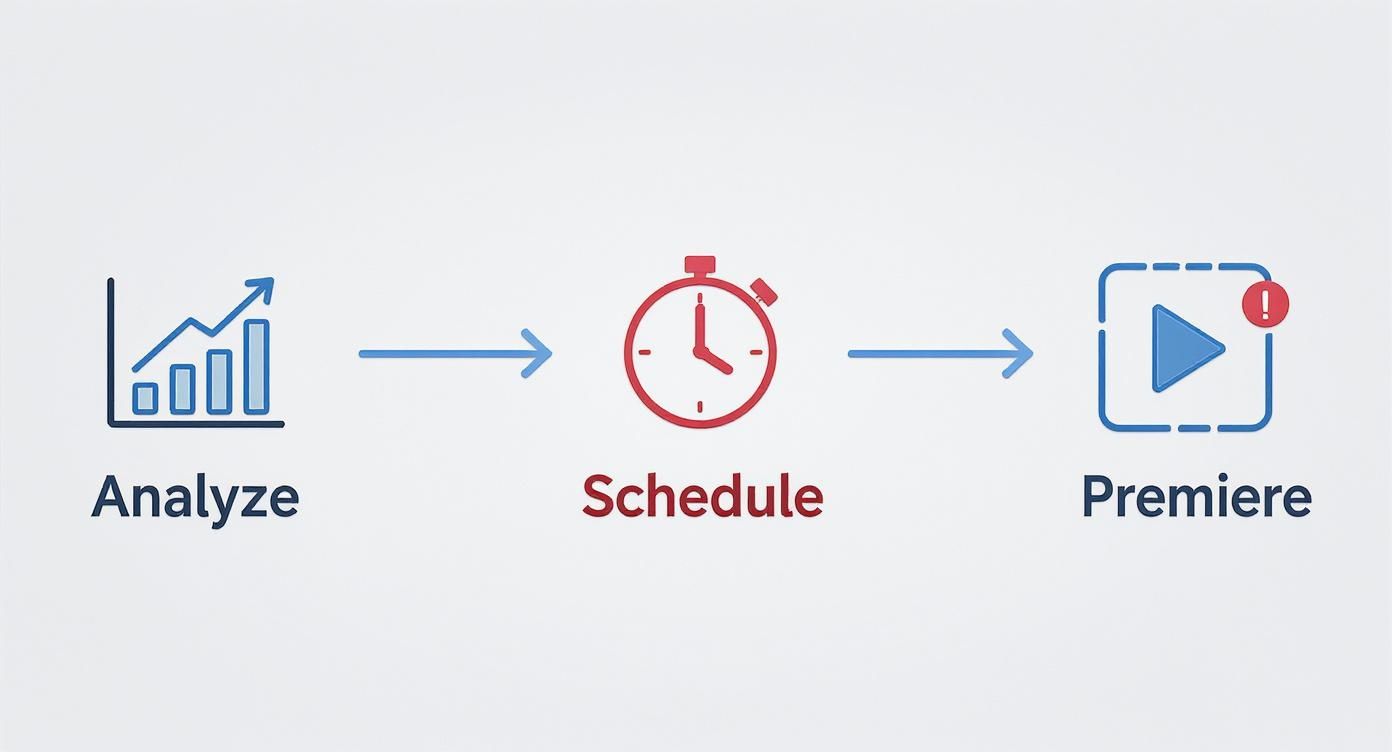
The main takeaway here is simple: a successful broadcast begins long before you hit 'go live'. It starts with understanding your audience and curating the right content.
Beyond OBS, you'll need a few other things:
- A Curated Content Playlist: Gather all the videos you want to feature in your loop. This could be tutorials, music, gameplay highlights—whatever fits your channel's theme.
- A Reliable Machine: Since the stream runs continuously, it needs a dedicated computer or server that can stay on 24/7 without crashing or overheating.
- A Cloud Automation Tool: While you can run everything from a home PC, the most reliable way to guarantee 100% uptime is with a cloud-based service built for this purpose.
Getting OBS Set Up for Looped Playback
Configuring a continuous loop in OBS is actually pretty simple. The magic happens by using either the "VLC Video Source" or the "Media Source" feature, which lets you point the software to a playlist that just repeats itself.
First, do yourself a favor and organize all the video files you want to use into a single folder on your computer. This makes it so much easier for OBS to find everything and cycle through your content smoothly.
Inside OBS, you’ll start by creating a new "Scene" specifically for your 24/7 stream. Then, you'll add a new "Source" and direct it to your video playlist.
Now for the most important part: look for a little checkbox in the source's properties labeled "Loop". Make sure you check it. This one click is what tells OBS to start the playlist right back at the beginning once the last video finishes, creating your endless broadcast.
The real challenge of a DIY 24/7 stream isn't the initial setup; it's the maintenance. Internet outages, unexpected computer restarts, and software glitches can knock your stream offline, forcing you to step in and manually get it running again.
This is exactly why dedicated tools are a lifesaver for serious streamers. For a true "set-it-and-forget-it" solution, creators often turn to cloud platforms. Our guide on the best software for YouTube live streaming dives into tools like 24/7 LiveStream, which handle all the heavy lifting—the looping, encoding, and broadcasting—from their own secure servers.
This approach completely removes the need to run your own computer 24/7 and comes with auto-recovery features that keep your stream online, no matter what happens.
Fine-Tuning Your Scheduled Videos for SEO
Knowing how to schedule YouTube videos is a game-changer for consistency, but that's just step one. To really get traction, you need to bake your SEO strategy right into the scheduling process.
When you optimize a video before it goes live, you're giving the YouTube algorithm a head start. It gets time to process your video's information, figure out what it's about, and line up the perfect audience for the moment it drops.
Nail Your Metadata Before You Go Live
Think of your metadata—your title, description, and tags—as your video's first impression on YouTube's algorithm. Getting this right is your best shot at telling YouTube who needs to see your content. This means doing your keyword research and weaving those terms into your text naturally.
Your title is your hook. It has to grab a viewer's attention while clearly signaling the topic with your main keyword. Avoid clunky, keyword-stuffed titles; you're writing for people first and algorithms second.
The description is where you fill in the blanks. The first couple of sentences are gold because they show up in search previews. Use this space to elaborate on your title, sprinkle in some related keywords, and maybe drop a relevant link or two. For a much deeper look at this, our complete guide on how to optimize your videos for YouTube walks you through everything.
A perfectly optimized video does more than just serve your existing subscribers. It's built to be found by new viewers through search, which is the real engine for channel growth. This is just as true for scheduled uploads as it is for the visibility of your 24/7 live stream.
More Than Just Keywords: Visuals and Engagement
Your thumbnail is probably the single most important piece of your video's SEO puzzle. It’s what makes someone choose your video over a dozen others. A great custom thumbnail with bold, clear visuals and expressive faces can make all the difference.
While you're scheduling, don't forget to set up those all-important interactive features that keep people watching.
- End Screens: Point viewers to another one of your videos or a binge-worthy playlist. The longer they stay on your channel, the better.
- Info Cards: These are great for adding little pop-up links to a product, a related video, or an article on your website.
And if you're looking to grow beyond your home country, learning how to translate YouTube videos can open up your content to a massive global audience. By getting all these pieces in place ahead of time, your video is primed and ready to perform the second it's published.
Got Questions About Scheduling on YouTube?
Even after you get the hang of scheduling, a few questions tend to crop up. Let's tackle some of the most common ones I hear from other creators so you can build your content calendar with confidence.
Will Scheduling Hurt My Video’s Performance?
This is probably the biggest myth out there, so let's clear it up: No, scheduling absolutely does not hurt your video's performance.
The YouTube algorithm doesn't care if you hit "Publish" now or scheduled it a week ago. In fact, the opposite is often true. Scheduling a video to go live when you know your audience is online is one of the smartest things you can do. It helps drive that crucial initial velocity—the burst of views right after it's published—which is a huge positive signal to YouTube.
What if I Need to Make Changes After I’ve Scheduled It?
We’ve all been there. You schedule a video, walk away, and then realize you made a typo in the title or thought of a much better thumbnail.
Good news: you can easily edit almost anything before the video goes live.
Just head back into your YouTube Studio, click on the "Content" tab, and find your scheduled video. From there, you can tweak the:
- Title
- Description
- Tags
- Thumbnail
- Even the monetization settings
This flexibility is a lifesaver for making last-minute adjustments or optimizing your metadata if a relevant trend suddenly takes off.
Scheduled Video vs. Premiere: What’s the Real Difference?
This one trips people up, but the distinction is pretty important for your strategy.
A scheduled video just appears on your channel at the designated time, ready for viewing. Simple and effective for your regular, evergreen content.
A Premiere, on the other hand, turns the launch into an event. It creates a public watch page with a countdown timer and a live chat, letting you and your community experience the "first watch" together.
Think of it like this: Scheduling is like putting a new episode on a streaming service. A Premiere is like hosting a live screening at a movie theater.
Use standard scheduling for your bread-and-butter content, like weekly vlogs or tutorials. Save Premieres for the big stuff—a series finale, a major channel announcement, or even the launch of a new 24/7 live stream to get everyone hyped and watching from the very first second.
Ready to create an 'always-on' presence and boost your watch time around the clock? With 24/7 LiveStream, you can easily set up a continuous, professional live stream from your pre-recorded videos. Start your 24/7 stream today and keep your channel growing, day and night.